
Disclaimer: This post may contain affiliate links. If you make a purchase through them, we may earn a commission at no extra cost to you.
If you run ads for a Wix site and went looking for Cookiebot, you already hit the first surprise: on Wix you don’t install Cookiebot for Wix anymore. It was the case in the past, but now you install Usercentrics for Wix, a separate app built by the same company. Usercentrics states plainly that the two are different products with separate pricing.
That is not a licensing quirk. It comes down to how Wix serves your site, and it decides whether your tags actually respect consent or only look like they do. This guide covers why a generic CMP script falls short on Wix, how to install and configure the Usercentrics app, how to connect Google Tag Manager, and how to get Consent Mode v2 signals flowing so your Google Ads campaigns keep their conversion data.
💡 Not sure a banner is even required for your site?
Find out whether you need a cookie consent banner and what triggers the obligation.
Why you can’t just drop any CMP on a Wix site
A classic script-based CMP works like this: it loads first, blocks every other script on the page, waits for the visitor’s choice, then releases the scripts that got consent. That model assumes all scripts load in the browser when the page loads.
Wix doesn’t work that way. Wix handles many tasks server side, including blocking certain scripts and displaying web pages, and it loads scripts as they are needed rather than all at once. A browser-side blocker might never see those scripts, so it can’t block them.
There’s a second problem. On a Wix site, the same tracker is often used by several components and apps at once. A blunt blocker that kills that tracker blocks every component using it, which can break an app unexpectedly. Usercentrics for Wix app coordinates blocking with Wix directly, so only trackers in a category the visitor did not consent to get blocked.
Practical takeaway for you as an advertiser: on Wix, pick a CMP with a native Wix integration. A pasted script in an HTML embed gives you a banner and a false sense of compliance, not real blocking.
📔 New to consent management platforms?
Start with CMPs explained: what is a consent management platform before you compare tools.
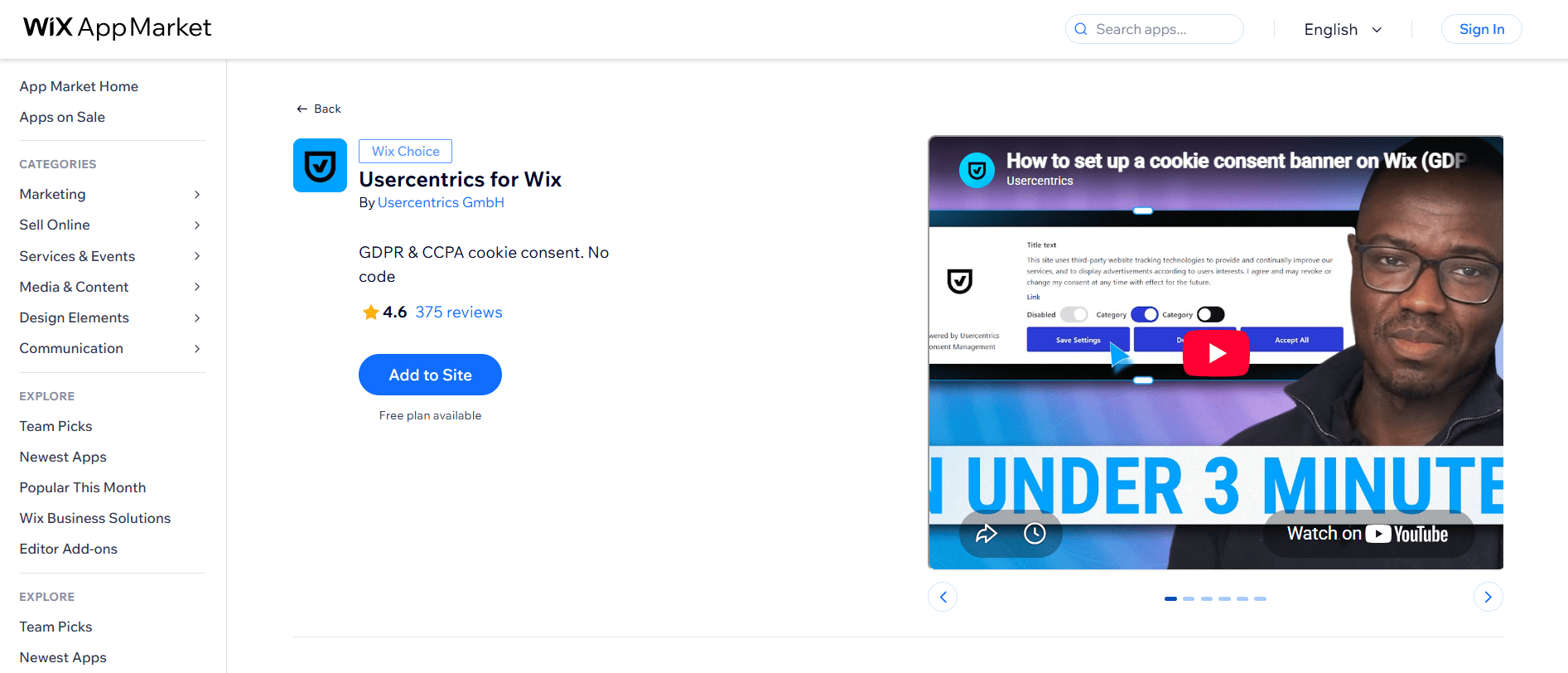
How to set up Usercentrics on Wix
Step 1: Install Usercentrics for Wix
You can install the app directly from the Wix App Market, or through your Wix settings:
1. Go to Wix Studio.
2. Hover over the site where you want to add your cookie banner and click Select Site.
3. In the left-hand navigation menu, click Settings.
4. Under Site, domain & SEO, select Privacy & cookies.
5. At the top, find Add a cookie consent banner and click Add to Site.
6. In the pop-up, agree to the terms of use and click Agree & Add.
You can now activate your banner and get started.
Step 2: Review the automatic website scan
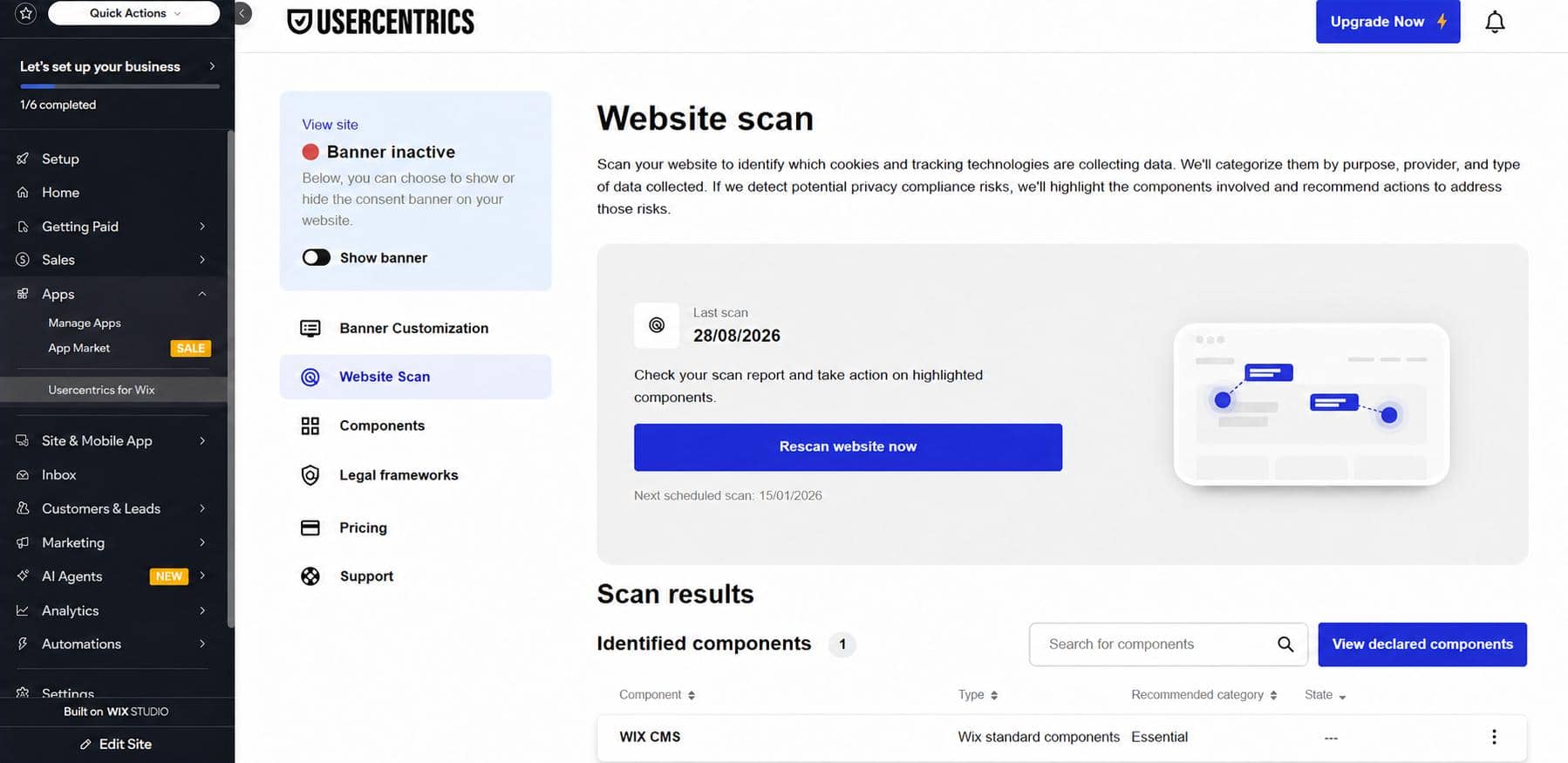
After you install the app, your website is scanned automatically. Usercentrics recommends reviewing the scan results to check which components on your Wix site use trackers, and whether that use is compliant with the GDPR and the ePrivacy Directive.
Don’t skip this. The scan is where you find out which Wix apps, embeds, and marketing integrations set cookies you never consciously added. Every one of them needs to sit in the right consent category before your banner means anything.
🕵️ Want a second opinion on what your site actually sets?
Here is how to check your website cookies in 5 steps, with screenshots.
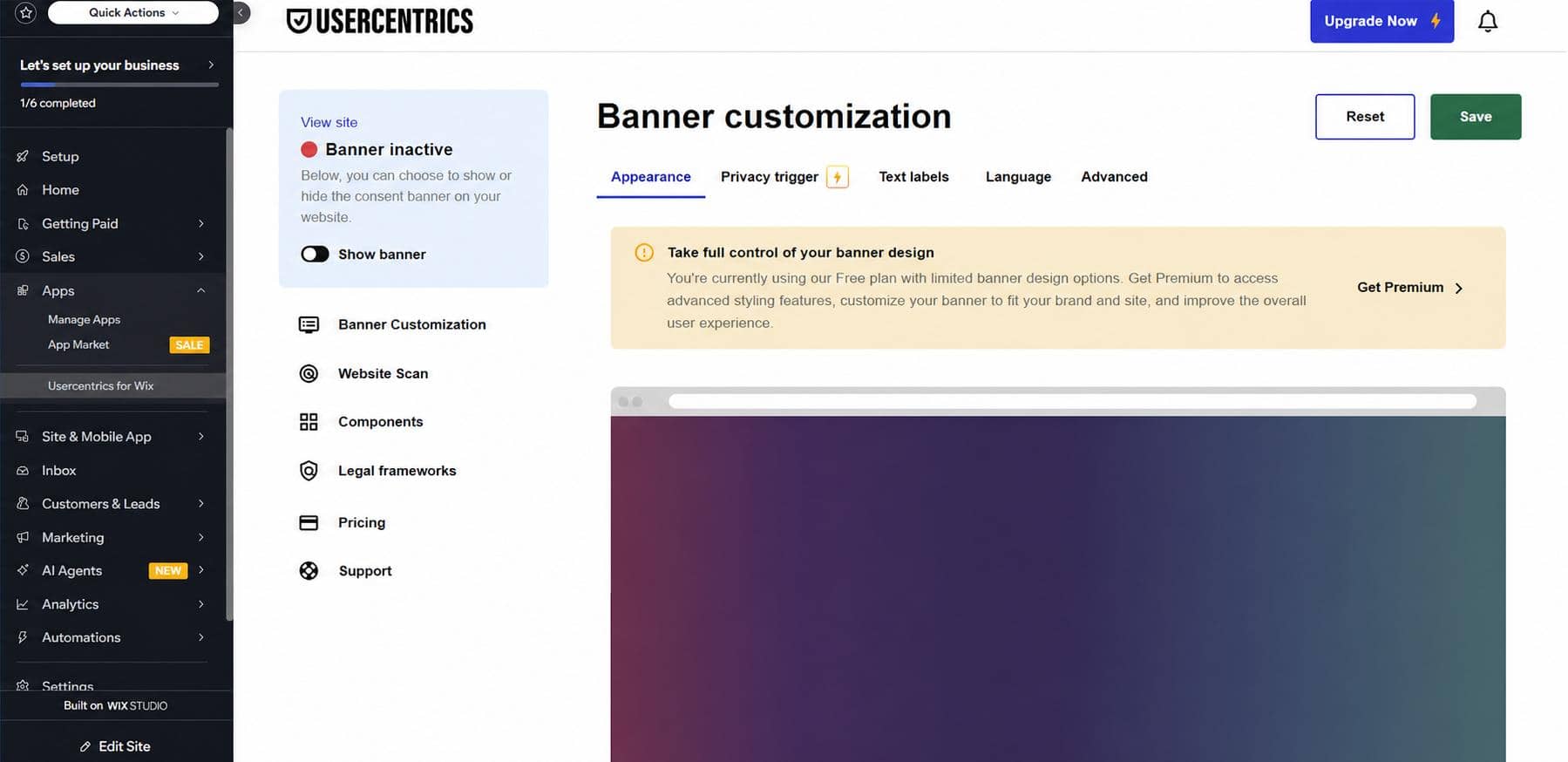
On the free plan you can switch between light and dark themes. On premium you control position, styling, the intro message, button labels, and where the privacy trigger sits.
🎨 Not sure what a compliant banner should look like?
Check these 13 cookie consent banner requirements, with real-world examples.
Step 4: Connect Google Tag Manager to your Wix site
Google Tag Manager is supported, and it will not receive any information from the webpage until the user accepts the consents on the banner.
To link your container:
1. Log in to Google Tag Manager and copy the container ID of your configuration (the GTM-XXXXXXX value).
2. In your site dashboard, go to Marketing Integrations.
3. Click Connect under Google Tag Manager.
4. Click Add Google Tag Manager.
5. Enter your Google Tag Manager ID.
6. Click Save.
That is the whole connection. Everything else happens inside GTM.
🔧 Setting up Cookiebot on a non-Wix site?
Compare the flow with how to implement Cookiebot with Google Tag Manager in 5 steps.
Step 5: Enable Consent Mode v2 in your GTM container
Usercentrics for Wix supports Google Consent Mode v2. If Consent Mode is already enabled in your GTM configuration, you do not need to set anything up: your banner already sends Consent Mode v2 signals by default.
If it isn’t enabled yet, follow these steps:
1. Go to Admin in your Google Tag Manager account.
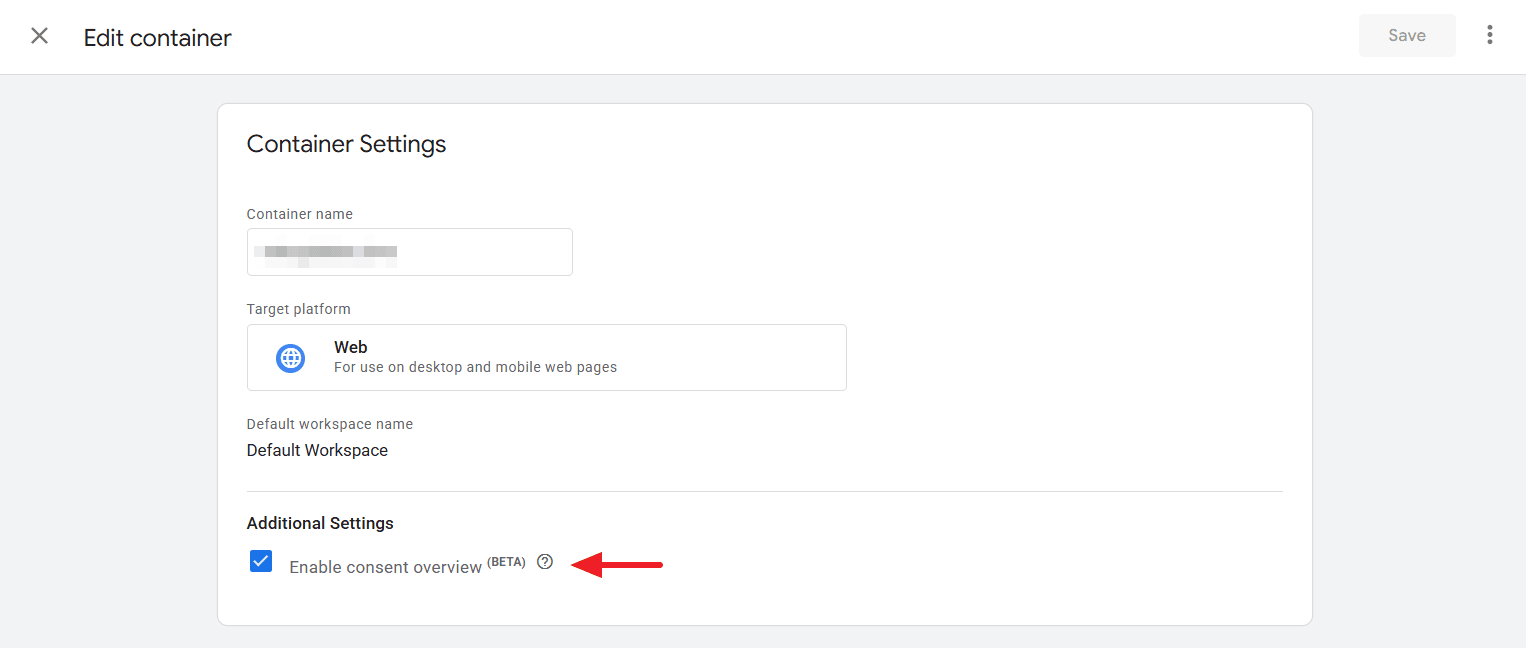
2. Select Container Settings.
3. Under Additional Settings, select the Enable consent overview checkbox.
4. Click Save.
5. Go to the Workspace tab and click Tags on the left.
6. Click the shield icon.
7. For tags that belong to Google, select them and choose No additional consent required.
8. For non-Google tags, select each one, choose Require additional consent for tag to fire, and enter the relevant category. Wix supports ad_storage, analytics_storage, and functionality_storage.
9. Save and publish your container.
This is the step that decides whether your Google Ads conversion modeling works. A container where the consent state never updates after someone clicks accept produces the same outcome as a visitor who refused: no signal, no modeled conversions.
⚖️ Wondering what a broken setup actually costs?
Read about Consent Mode fines and why ignoring GDPR gets expensive.
Step 6: Verify it actually works
Don’t take the banner’s word for it. Check the signal:
- Load your site in an incognito window and watch the Consent Mode state before and after you click accept.
- Use GTM Preview mode and confirm the consent state flips from denied to granted on your Google tags.
- Check Google Ads and GA4 for whether Consent Mode is detected.
✅ Not sure what to look for?
Try these 9 ways to check if Consent Mode is enabled and pick the method that suits your setup.
The one thing to remember
On Wix, the app you install is Usercentrics for Wix, not Cookiebot CMP, and the reason is technical rather than commercial: Wix loads scripts server side, so only a CMP that coordinates blocking with Wix can handle them properly. Install the app, review the scan, connect GTM, confirm Consent Mode v2 is firing, and verify the signal with your own eyes.
Get your Wix site set up with Usercentrics for Wix and keep your marketing data intact.
📘 Want the full picture on Consent Mode?
Read the ultimate guide to Consent Mode for what it is, how it works, and what it changes in your account.
Frequently asked questions
On Wix you install Usercentrics for Wix, which is a separate product from Cookiebot CMP with its own pricing. Usercentrics built the dedicated Wix app because Wix handles many tasks server side, so a standard script-based CMP cannot reliably block scripts that Wix loads as they are needed.
There is a free plan that includes unlimited banner views, GDPR and Google Consent Mode v2 support, one default language, blocking user interaction until consent, and light and dark themes. The premium plan adds CCPA support, 60+ languages, and full banner customization.
Yes. Usercentrics states that Usercentrics for Wix supports Google Consent Mode v2, and that if Consent Mode is already enabled in your Google Tag Manager configuration, the banner sends the signals by default with no extra setup.
Yes. Google Tag Manager is supported, and Google Tag Manager will not receive any information from the webpage until the user accepts the consents on the Usercentrics banner. You connect the container in Marketing Integrations in your Wix site dashboard.
Wix loads many scripts from the server side as they are needed rather than all at once when the page loads, so a browser-side script blocker may never see them. The same tracker is also often shared by several Wix components, so blunt blocking can break apps. Usercentrics for Wix coordinates blocking with Wix to avoid both problems.