

Have you opened a Demand Gen campaign and found a video ad you never uploaded? Or your clients contacted you asking what is this video they never approved?
Google AI creates auto-generated videos from your existing images and text, and serves them alongside your own creatives. If you do not like the result, pausing the video ad is not enough. Google creates it again.
The fix is to turn the feature off at the ad level. In this guide you will learn what the feature does, why pausing fails, and how to disable it in the Google Ads UI and in Google Ads Editor.
What are auto-generated videos in Demand Gen?
According to Google’s help article, auto-generated video ads use the text and image assets and brand guidelines from your campaign to create videos in horizontal, square and vertical orientations. For Demand Gen, Google now also uses image-to-video generative AI to turn a static image into a 10-second clip.
Two details matter if you want control over what runs:
- The videos live on a Google-owned YouTube channel, not on yours. Google states you cannot manage this channel or edit the videos.
- Demand Gen is the only campaign type with an explicit on/off switch. In App and Performance Max campaigns, auto-generated videos switch off automatically once you upload your own videos. In Demand Gen, the control sits at the ad level and you have to turn it off yourself.
You can preview the generated videos in the Assets report of your Demand Gen campaign.
Why pausing the auto-generated video ad does not work
When you enable the feature, Google creates a separate auto-generated video ad next to your original ad (named after your ad, for example “(HairBeat) auto-generated video ad”). If you pause that ad, the Generated videos setting on the original ad stays On, so Google simply generates a new video ad from your latest assets. Pause, repeat, pause, repeat.
To stop it for good, you need to switch off Generated videos in the Asset optimization section of the ad itself. There are two ways to do it.
💰 Planning a Demand Gen budget?
Google now recommends a lower starting budget. Read about the Demand Gen budget recommendation change to 10x.
Option 1: Disable generated videos in the Google Ads UI
- Open your Demand Gen campaign and go to Ads.
- Click the ad that Google used as the source for the generated video (the original ad, not the auto-generated video ad) and open it for editing.
- In the right-hand panel, find the Asset optimization section and check the Video section (Generated videos).
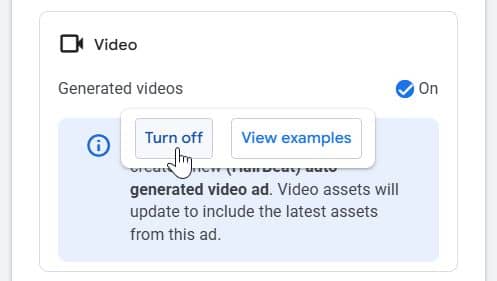
- Next to Generated videos, click the On checkbox. A small menu appears with Turn off and View examples.
- Click Turn off.
- Google shows a yellow warning: “Turning off asset optimization can limit your performance.” Ignore it if you prefer to control your creatives, and save the ad.
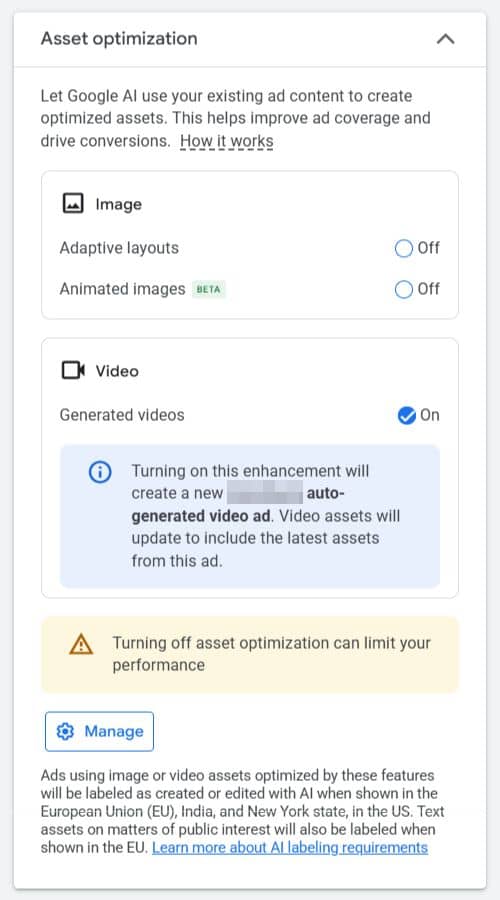
💡 TIP: While you are here, check the Image section too. Adaptive layouts and Animated images (beta) are separate enhancements that change how your image assets render. Leave them Off if you want your images shown exactly as uploaded.
The info box in the panel explains the behaviour: turning the enhancement on creates a new auto-generated video ad, and its video assets update to include the latest assets from your ad. That is why the generated video keeps coming back as long as the setting is on.
Option 2: Disable generated videos in Google Ads Editor
Google Ads Editor is faster if you manage many Demand Gen ads or several accounts.
- Download the latest changes for the account(s) in Google Ads Editor.
- In the left tree, navigate to your Demand Gen campaign and select Ads.
- Select one or more ads. You can multi-select ads across campaigns.
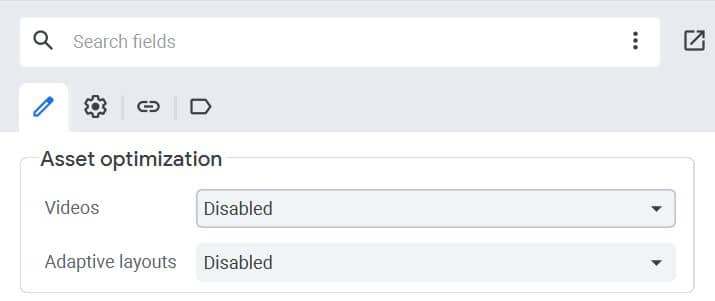
- In the edit panel on the right, find the Asset optimization section with two dropdowns: Videos and Adaptive layouts.
- Set Videos to Disabled. Set Adaptive layouts to Disabled as well if you do not want layout changes.
- Click Post to push the changes to your account.
❗ DON’T FORGET: After changing the setting, pause or remove the existing auto-generated video ad. Disabling the setting stops new videos from being generated, but the ad that already exists does not disappear on its own.
Should you turn generated videos off?
Not always. Auto-generated videos give you YouTube inventory without production cost, and Google positions them as a performance lever. Turn them off when:
- Brand control matters: the video uses your images in a way your client or brand team would not approve.
- You already have strong video assets: you do not need template-based or image-to-video fillers competing with them.
- AI labeling is a concern: ads using image or video assets optimized by these features are labeled as created or edited with AI when shown in the EU, India and New York state, as the asset optimization panel itself states.
If you keep the feature enabled, make sure to review the auto-generated videos to ensure you’re happy with their quality and messaging.
🎥 Want video ads you actually control?
Learn how to create effective YouTube ads with the ABCD framework and an example video breakdown.
Take back control of your Demand Gen creatives
Pausing the auto-generated video ad is a temporary fix. Switch off Generated videos in the Asset optimization section of each Demand Gen ad, in the Google Ads UI or in bulk via Google Ads Editor, and Google stops creating new videos for that ad. Then clean up the existing auto-generated video ad, and check the Image enhancements while you are at it. Go through your Demand Gen campaigns today and make sure only the creatives you approved are running.