Disclaimer: This post may contain affiliate links. If you make a purchase through them, we may earn a commission at no extra cost to you.
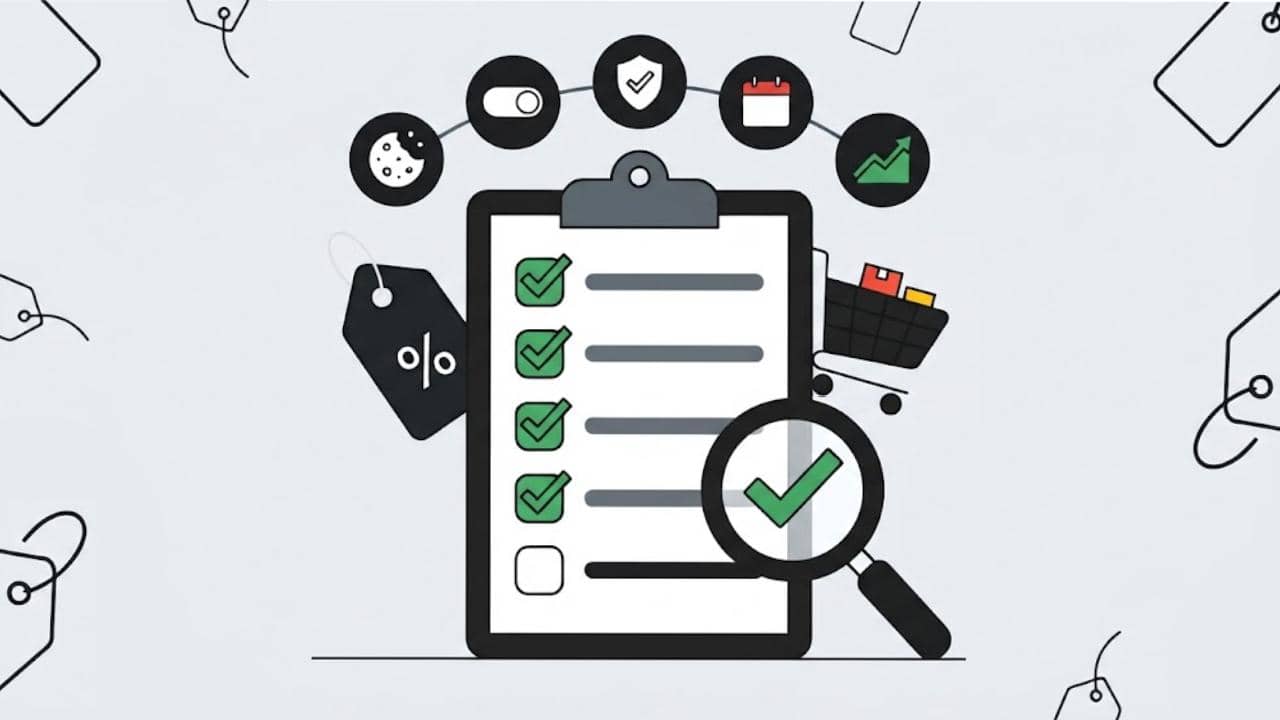
If Black Friday is your biggest ecommerce week of the year, it’s also the week your Black Friday campaigns can least afford broken tracking. A tag that fires before consent, a checkout page your banner doesn’t cover, or a conversion that stops recording for two days can cost you data, Smart Bidding performance and, in some markets, legal trouble.
In the first part of this series, you measured how much conversion data your cookie banner costs you. Now it’s time to prepare for Black Friday and test your setup before the traffic peak.
This Black Friday checklist walks you through 12 tracking checks for ecommerce advertisers to run before Black Friday and Cyber Monday (BFCM), what to monitor during Black Friday week, and what to do if something breaks.
Use Cookiebot CMP to collect user consent, stay compliant with GDPR and other global regulations, and ensure proper implementation of Consent Mode. Trusted by millions, available in 47+ languages, it’s the most popular solution for balancing privacy and performance. Easy to set up, fully customizable, and Google-certified.

When to Prepare for Black Friday
Cookiebot’s Black Friday 2026 Consent Compliance Checklist splits the preparation into four phases:
- Through September: establish your baseline.
- By October 1: close the regulatory gaps.
- By November 1, or before your freeze date: get ready for peak traffic.
- Black Friday week: monitor, don’t change.
Black Friday week 2026 runs from November 23 to 29, and Cyber Monday follows on November 30, closing Cyber Week. If you haven’t tested your tracking yet, do it now, and finish before your team’s code freeze.
⚠️ Note: Cookiebot’s checklist also includes guidance for teams working against a code freeze. Check your freeze date with your developer first, so you know how much time you have for fixes.
Black Friday Checklist for Ecommerce Tracking: 12 Checks
Start with the basics. Your consent default has to be set before any tag uses or updates consent. Google lists “default consent set too late” among the consent mode issues to troubleshoot: setting the default too late may not have the anticipated effect, so your consent banner should load before your Google tag sends any data.
In Google Tag Manager, use the Consent Initialization – All Pages trigger for your CMP tag. According to Google, this trigger always fires before all other tags, including Initialization triggers.
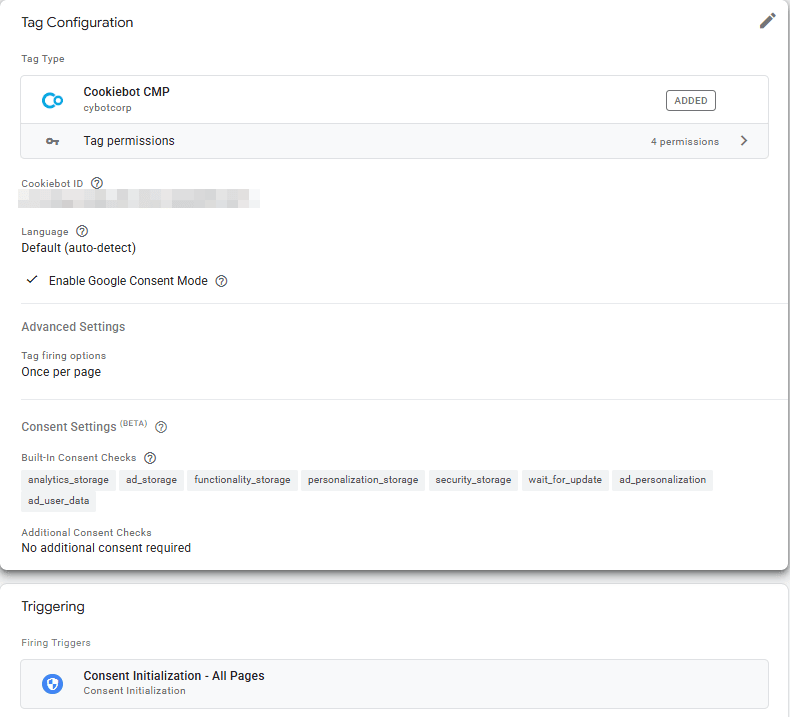
Then test it:
- Open your website in a private browser window, on your homepage, product pages and top landing pages.
- Don’t click anything in the cookie banner.
- Open your browser’s developer tools and check the cookies stored for your domain.
With consent denied, Google tags don’t write new advertising cookies, such as the _gcl_ conversion cookies, and don’t read or write first-party analytics cookies, according to Google’s consent mode reference. If you find advertising or analytics cookies before you’ve clicked anything, a tag is firing too early.
🔧 Using Cookiebot with GTM?
Learn how to set up Cookiebot in Google Tag Manager in 5 steps.
2. Review the Consent Settings of Every Tag in GTM
Some tags have built-in consent checks: they change their behavior based on the consent state, like Google Ads, Google Analytics and Floodlight tags. Tags without built-in checks need your help.
For each tag, go to Advanced Settings > Consent Settings. Review the Built-In Consent Checks, then the Additional Consent Checks. According to Google, you have three options:
- Not set: no additional consent checks are performed.
- No additional consent required: the tag doesn’t need more than its built-in checks.
- Require additional consent for tag to fire: the tag fires only if all the consent types you select are granted.
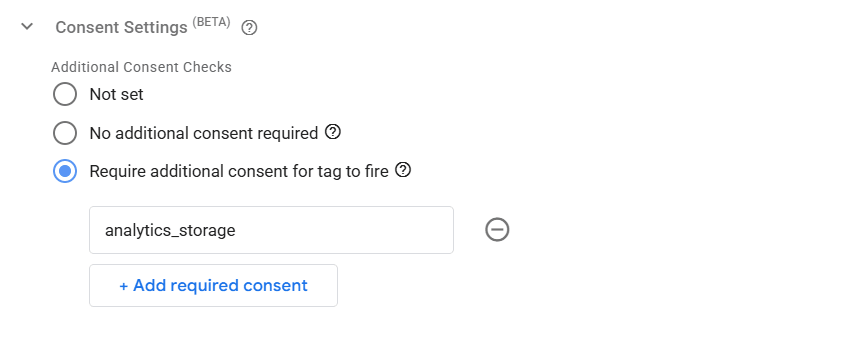
For marketing tags without built-in consent checks, the third option is the one that keeps them from firing before consent. Before Black Friday, go through every marketing tag in your container and check its setting.
3. Test the Checkout Flow, Not Just the Homepage
Cookiebot points out in its article on checkout flows that a cookie banner installed and tested on the homepage often doesn’t cover the checkout flow at all. Many e-commerce platforms route checkout through a separate subdomain, a hosted payment page or a third-party checkout provider, each with its own scripts and timing. A pixel that is correctly gated on the homepage can fire unblocked at checkout, simply because nobody tested that page.
Checkout is also where your purchase conversion tags fire. Repeat Check 1 on every step of the checkout process: cart, checkout and thank-you page. If you offer guest checkout, test it too, not just the logged-in path.
4. Check Chat and Third-Party Widgets
Live chat, AI chat assistants, review widgets and session recording tools all load their own scripts.
Cookiebot warns that chat widgets have become a common target of CIPA lawsuits in the US, because a widget can capture and transmit a visitor’s typed conversation before consent is collected. Retailers often don’t think of a chat widget as a tracking tool that needs the same consent gating as an ad pixel.
Make a list of every widget on your site and check which cookie category it falls under in your CMP.
5. Check How Your Site Handles the GPC Signal
Global Privacy Control (GPC) is a signal a visitor’s browser or browser extension sends to every website they visit. According to the GPC website, it’s intended to communicate a Do Not Sell or Share request under the California Consumer Privacy Act and similar US state laws. Under the GDPR, its intent is a general request to limit the sale or sharing of personal data.
According to Cookiebot, a dozen or so US states now require sites to detect and act on GPC or another universal opt-out mechanism. If you get US traffic, this check is for you.
Here’s the catch Cookiebot highlights: honoring the signal in your banner isn’t the same as honoring it downstream. A retargeting pixel, a conversion API integration or a server-side tag set up before the GPC requirement can keep sending the visitor’s data to an ad platform, whatever the banner shows.
To test it:
- Turn on GPC in your browser or a browser extension that supports it.
- Visit your website and go through to checkout.
- Check that your marketing tags and server-side integrations don’t send data for that visitor.
Cookiebot says its Cookiebot CMP makes it easier for businesses to adapt to GPC.
6. Check Microsoft Ads and Microsoft Clarity
If you run Microsoft Advertising, your UET tag needs consent handled too. Microsoft has its own consent mode for UET, and Microsoft Clarity has its own consent setting.
📔 Need the setup steps?
Follow the Microsoft Advertising Consent Mode guide and the Microsoft Clarity Consent Mode setup guide.
7. Run a Test Purchase
Your consent setup can be perfect and your conversions can still break. A new checkout plugin, a theme update or a payment method change can all stop a purchase tag from firing.
- Accept all cookies in your banner.
- Place a real test order, ideally with the payment method your shoppers use most.
- Check that the purchase arrives in Google Ads (Goals > Conversions > Summary) and in GA4, with the correct value.
- Repeat the test after rejecting cookies, to see how your tags behave for unconsented visitors.
Run the test a few days before your freeze, so you have time to fix what you find.
8. Check Your Conversion Values With Black Friday Discounts
Your purchase tag should send the actual value of each order, not a fixed number. Google calls these transaction-specific values: the tag passes the value and currency of every order, which gives you a more accurate sense of your ROI.
During a Black Friday discount, this matters more than usual. Your average order value changes, and with Target ROAS, Smart Bidding optimizes on the order values it receives.
- Go to Goals > Conversions > Summary and click your purchase conversion action.
- Check the Value setting. It should say Use different values for each conversion.
- Compare the values from your test order in check 7: the conversion value in Google Ads should match the discounted order total in your ecommerce platform, not the original price.
9. Check Your Consent Mode Status in Google Ads
In Google Ads, go to Goals > Conversions > Summary and open the Diagnostics tab. The Consent mode card rates your setup. Click View details to see the explanation.
If something isn’t right, verify your implementation with Tag Assistant. Google’s steps: the earliest consent event should show the default set to Denied and the update after your banner choice set to Granted, according to Verify consent mode implementation.
🕵️ Want more ways to test it?
Discover 9 ways to check if Consent Mode is enabled.
10. Tell Smart Bidding About Your Sale With Seasonality Adjustments
Your conversion rate during a Black Friday sale can look very different from a normal week. Seasonality adjustments let you inform Smart Bidding about expected changes in conversion rates for future events like promotions or sales.
What Google says about them:
- Use them only for major changes: Smart Bidding already manages seasonal events, so use an adjustment only if you expect a major change in conversion rate.
- Keep them short: they’re ideal for events of 1 to 7 days and may not work as well for more than 14 days at a time.
- Campaign types: Search, Shopping, Demand Gen and Display campaigns with Target ROAS or Target CPA, plus Performance Max campaigns with all bid strategies.
- No reset needed: campaigns return to their usual performance after the event, so you don’t need a negative adjustment afterwards.
- Several accounts at once: you can create one adjustment in a manager account and apply it to linked client accounts.
Google’s example: if you expect conversion rates to increase by 50% during a 3-day sale, you can create an adjustment of up to 50% for those 3 days.
You’ll find them in Google Ads under Tools > Budgets and bidding > Adjustments, on the Seasonal tab.
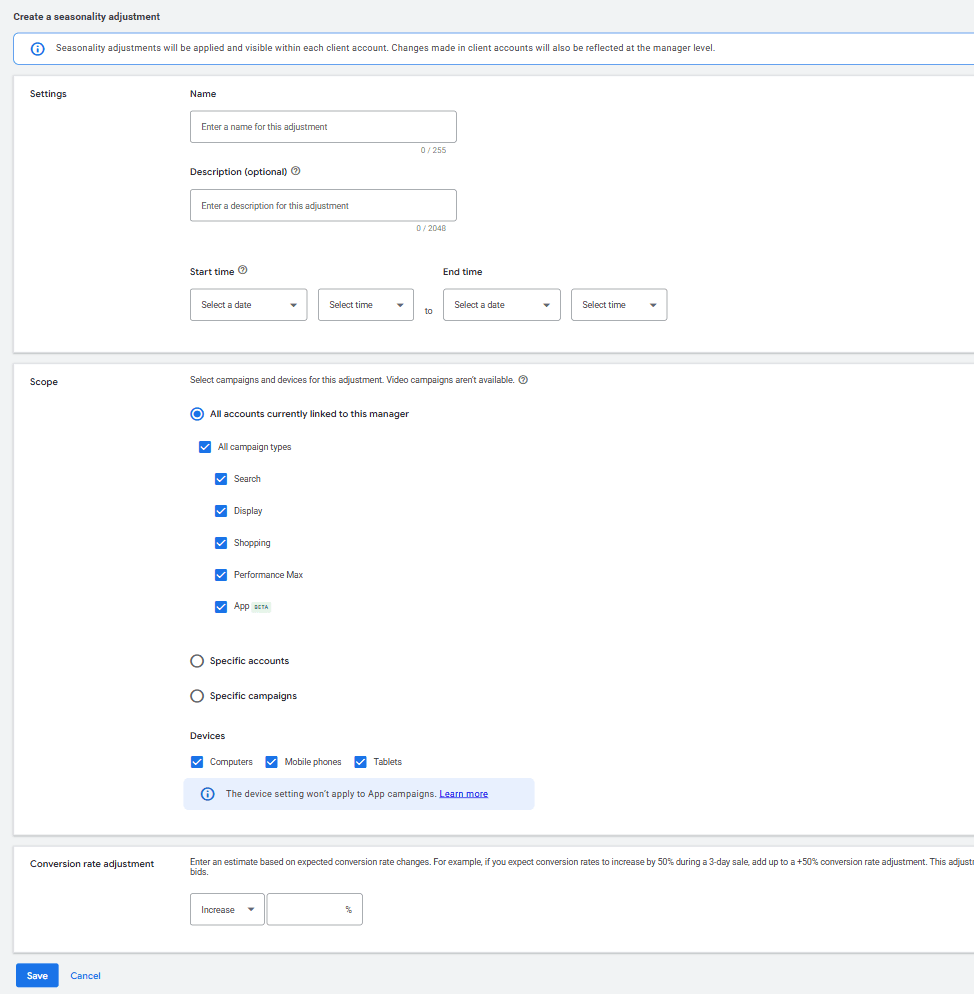
⚠️ Note: If your Black Friday sale runs for the whole of November, a seasonality adjustment may not be the right tool. Keep it for the peak days, such as Black Friday itself or the BFCM weekend.
Once everything works, stop changing it. That means no new tags, no new banner design and no new CMP settings during Black Friday week. It’s the same advice as phase 4 of Cookiebot’s checklist: monitor, don’t change.
Write down your current setup: the GTM container version, your CMP settings and your conversion actions. If something breaks, you’ll know exactly what to roll back to.
12. Prepare a Plan for Broken Tracking
Even with all the tests, something can break mid-week. Know what you’ll do before it happens.
In Google Ads, the tool for this is data exclusions. According to Google, data exclusions help you reduce the impact of conversion tracking issues on Smart Bidding, such as tagging issues, website outages or data import issues. They’re available for Search, Display, Shopping and Performance Max campaigns.
Key facts from Google before you use them:
- They work on clicks: exclude all days with clicks that could have had the affected conversions, including your typical conversion delay.
- They don’t change reporting: they only affect the data Smart Bidding uses.
- Apply them quickly: as soon as you identify the issue.
- Plan ahead for known outages: if you know about scheduled site maintenance, set the exclusion in advance.
- Don’t undo them: removing exclusions you’ve already applied can cause more issues.
To add one, go to Tools > Budgets and bidding > Adjustments, open the Exclusions tab and click the plus button.
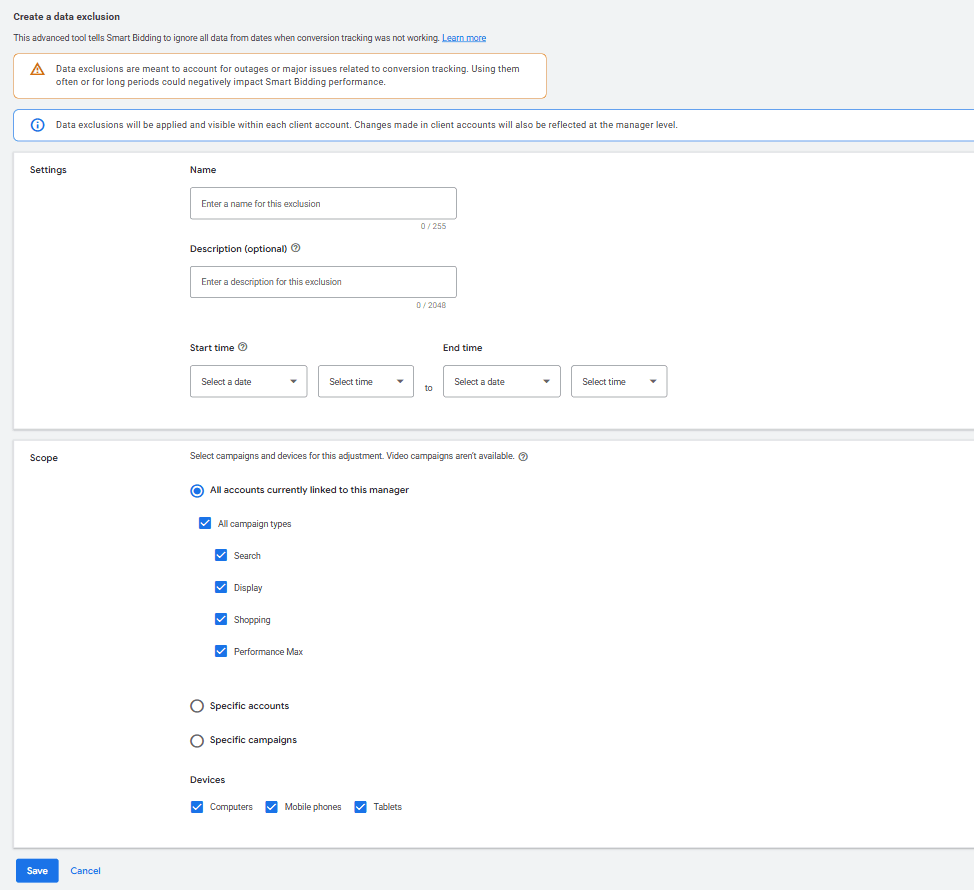
⚠️ Note: Google also recommends adjusting your CPA or ROAS targets and budgets after you apply a data exclusion. Don’t use exclusions frequently or for long periods, as that can hurt Smart Bidding performance.
What to Monitor During Black Friday and Cyber Monday (BFCM)
During Black Friday week, your job is to watch, not to change. Check these numbers every day, through Cyber Monday:
- Conversions vs. clicks in Google Ads: a sudden drop in conversion rate while clicks stay high is the first sign of a broken tag.
- Your consent rate: in Cookiebot, go to Analytics > Consent Analytics and look at the daily opt-ins and opt-outs. A sharp change can mean your banner stopped loading or started behaving differently.
- The Consent mode card in the Google Ads Diagnostics tab.
- GA4 purchases vs. your shop’s orders: if GA4 suddenly records far fewer orders than your e-shop admin, something changed.
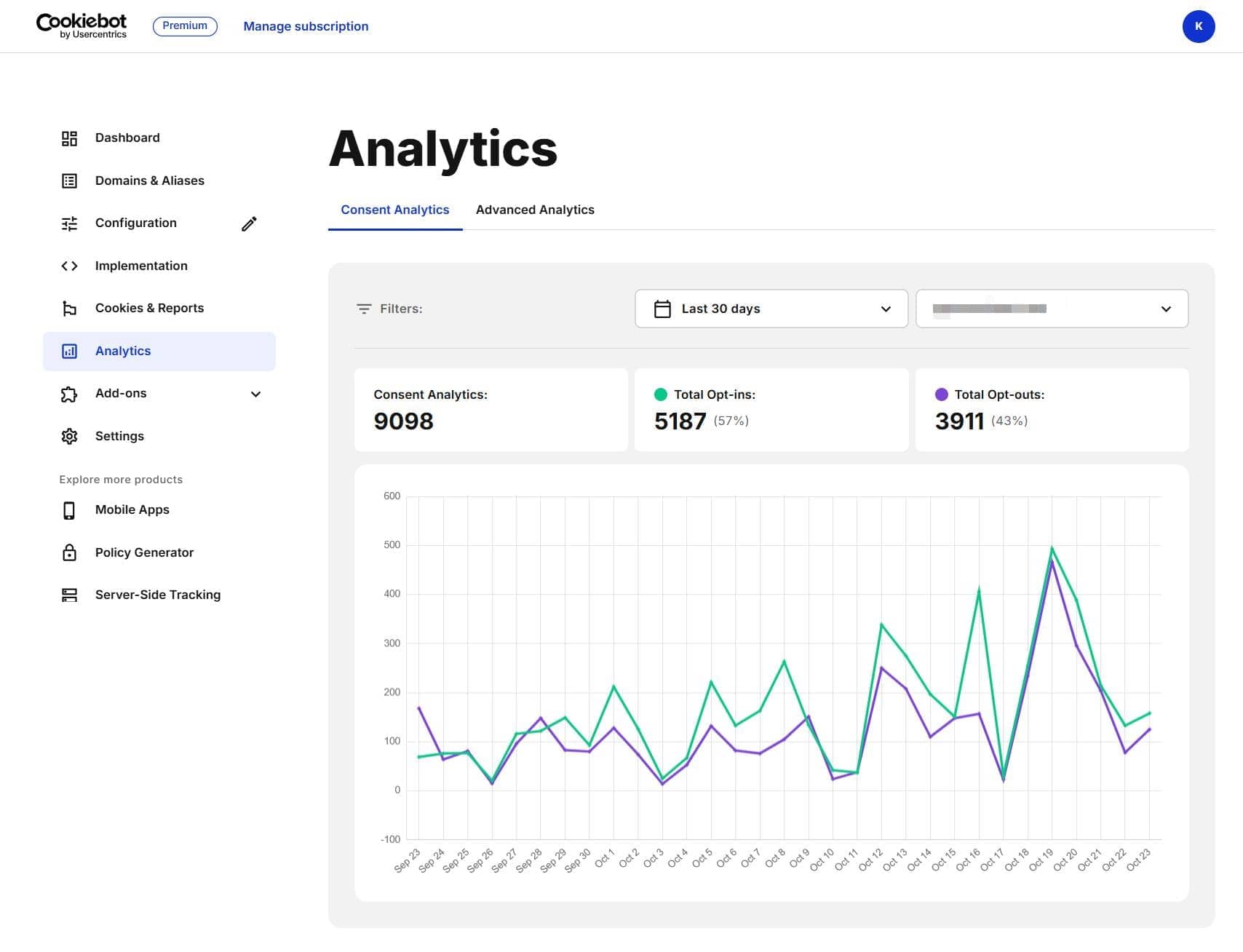
If you find a tracking problem, fix the tag and apply a data exclusion for the affected days, as described in check 12.
After Black Friday
When Black Friday and Cyber Monday are over:
- Review your data exclusions. Remember Google’s advice not to remove exclusions you’ve already applied.
- Bring your CPA or ROAS targets back to normal if you changed them after a data exclusion.
- Compare your consent rate before, during and after Black Friday.
- Unfreeze your setup and work through the fixes you postponed.
Get Your Setup Ready Before the Peak
You now have a 12-point Black Friday checklist to test your ecommerce tracking before BFCM traffic hits. Start with the free tools:
- Scan your website with Cookiebot’s free Compliance Test to see whether your setup is compliant.
- Download Cookiebot’s Black Friday 2026 Consent Compliance Checklist with dates for every phase.
- Run the Retail Consent Audit Guide checks on your banner, GPC handling and checkout flow.
Test now, freeze before the peak, and spend Black Friday week watching your numbers instead of fixing your tags.
Frequently Asked Questions
As early as possible. Cookiebot’s Black Friday checklist recommends getting ready for peak traffic by November 1 or before your code freeze, and only monitoring during Black Friday week.
No. Cookiebot’s Black Friday checklist recommends monitoring, not changing, during Black Friday week. Make banner and tag changes before your freeze date.
Global Privacy Control (GPC) is a signal a browser or browser extension sends to websites. It communicates a Do Not Sell or Share request under the California Consumer Privacy Act and similar US state laws. Under the GDPR, its intent is a general request to limit the sale or sharing of personal data.
Data exclusions tell Smart Bidding to ignore conversion data from a period with a tracking problem, such as a tagging issue or a website outage. They work on clicks, don’t change your conversion reporting and are available for Search, Display, Shopping and Performance Max campaigns.
Open your website in a private browser window, don’t click the cookie banner and check the cookies stored for your domain in your browser’s developer tools. Advertising or analytics cookies before any consent choice mean a tag fires too early. Repeat the test on your checkout pages.
Seasonality adjustments tell Smart Bidding to expect a major change in conversion rate during a future event, like a Black Friday sale. Google recommends them for short events of 1 to 7 days. They work for Search, Shopping, Demand Gen and Display campaigns with Target ROAS or Target CPA, and for Performance Max.
Only tags with built-in consent checks adjust their behavior to the consent state automatically. In Google Tag Manager, you can see them under Advanced Settings, Consent Settings. Set tags without built-in checks to require additional consent, so they fire only when the right consent types are granted.

Hana Kobzová is a freelance PPC specialist and the founder of PPC News Feed. Named among the TOP 100 Most Influential PPC Experts 2026, she is also a Google Ads Product Expert and a Microsoft Advertising Certified Professional. Hana delivers clear updates and actionable insights that help marketers save time and work smarter.