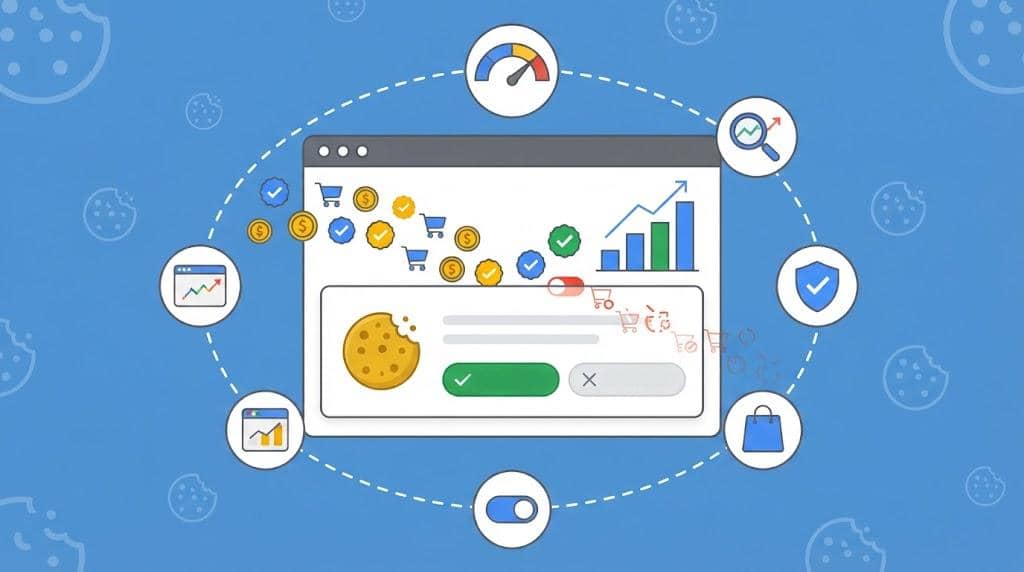
Every click you pay for shows up in Google Ads. But what happens after the click depends on one button in your cookie banner. When a visitor rejects cookies, every refusal cuts into the data collection your reporting, your bidding and your remarketing lists rely on.
Most advertisers know their consent rate exists. Very few know what it actually costs them in conversions.
In this guide, you’ll learn what a rejected banner changes in your ad account, why your consent rate is not the same as your conversion loss, and how to measure the gap in your own account in 5 checks.
With Black Friday around the corner, this is the right moment to do it. Your busiest week of the year is the worst week to find out your setup leaks data.
Use Cookiebot CMP to collect user consent, stay compliant with GDPR and other global regulations, and ensure proper implementation of Consent Mode. Trusted by millions, available in 47+ languages, it’s the most popular solution for balancing privacy and performance. Easy to set up, fully customizable, and Google-certified.
![Get Started with Cookiebot Today With 15% Off for 6 Months [SPECIAL OFFER]](https://ppcnewsfeed.com/wp-content/uploads/2025/11/cookiebot-2025-11.jpg)
What Is a Consent Rate?
Your consent rate, also called opt-in rate or acceptance rate, is the percentage of visitors who accept cookies in your cookie banner. The opposite is your refusal rate, the share of visitors who reject them.
A simple example: if 1,000 visitors make a choice in your banner and 600 of them accept, your consent rate is 60%.
⚠️ Note: Before you compare your number with anyone else’s, check what your CMP divides by: every visitor who saw the banner, or only the visitors who clicked a choice. The two give you different numbers.
One Consent Rate per Cookie Category
Visitors don’t have to accept everything. A banner can let them choose by category, and Cookiebot, for example, records opt-ins separately for preferences, statistics and marketing cookies.
As an advertiser, you care about two of them:
- Statistics consent: controls analytics_storage in Consent Mode, so it decides what GA4 can see.
- Marketing consent: controls ad_storage, and Consent Mode v2’s ad_user_data and ad_personalization follow the same trigger. It decides what Google Ads can measure and who can enter your remarketing lists.
That’s why it pays to look at your consent rate per category, not as one number.
What Affects Your Consent Rate
According to Usercentrics, the location of your target market and your visitors’ attitudes toward data privacy influence opt-in rates. In the US, the states that have privacy laws mostly follow an opt-out model, which in most cases allows data collection without prior consent.
Your industry plays a role too. That’s why Cookiebot’s Consent Rate Benchmark compares your rate with peers in your industry, region and company size category, not with a single global average.
What Your Consent Rate Decides in Your Ad Account
Google’s tags read your visitors’ consent choice through Consent Mode and change their behavior based on four consent types.
Here’s what Google says happens when a visitor says no:
- ad_storage denied: no new advertising cookies are written and no existing first-party advertising cookies are read.
- analytics_storage denied: Google Analytics does not read or write first-party analytics cookies.
- ad_user_data denied: using personal data for online advertising is disabled, and conversion pings are sent as cookieless pings.
- ad_personalization denied: remarketing in Google Ads doesn’t receive data from that visitor.
In practice, this means three things for you:
- Fewer observed conversions: Google can’t directly tie an unconsented visitor’s ad click to the purchase.
- Smaller remarketing lists: visitors who deny ad_personalization never enter them.
- Weaker signals for Smart Bidding: your bid strategy optimizes on the conversions it can see (or model).
🔍 New to the topic?
Start with The Ultimate Guide to Consent Mode to see how it works from the ground up.
Why a 50% Consent Rate Doesn’t Mean 50% Fewer Conversions
Here’s the part most people get wrong. Your consent rate and your conversion loss are two different numbers.
According to Google, consented users are typically 2 to 5 times more likely to convert than unconsented users. That varies by consent rate, industry and conversion type.
Google’s own example: an advertiser with a 50% consent rate saw only a 19% drop in conversions, and conversion modeling brought an 18% conversion rate uplift.
So a low consent rate is a warning sign, not a final verdict. To know what it really costs you, you need to measure it. That’s what the rest of this guide is about.
Basic vs. Advanced Consent Mode: Why It Changes What You Lose
How much data you get back depends on which version of Consent Mode you run.
- Basic Consent Mode: Google tags are blocked until the visitor consents. No data is sent before consent, not even the default consent state.
- Advanced Consent Mode: Google tags load with consent set to denied by default. When consent is denied, the tags send cookieless pings instead of nothing.
Why does this matter? Google says conversion modeling is most accurate when cookieless pings are fired, because they let Google build calibration factors specific to your account. And GA4 behavioral modeling requires the advanced implementation.
⚠️ Note: Advanced Consent Mode is a privacy and GDPR decision as much as a technical one. Check with your legal counsel which version fits your business.
Run these checks in order. Together, they give you a number for your own account and tell you whether Google is filling the gap.
Check 1: Find Your Consent Rate in Your CMP
Your consent management platform (CMP) is the only tool that sees every banner interaction. Start there.
In Cookiebot, open the Cookiebot Manager and go to Analytics > Consent Analytics. You’ll see the total number of consents, opt-ins and opt-outs for the selected domain and date range.
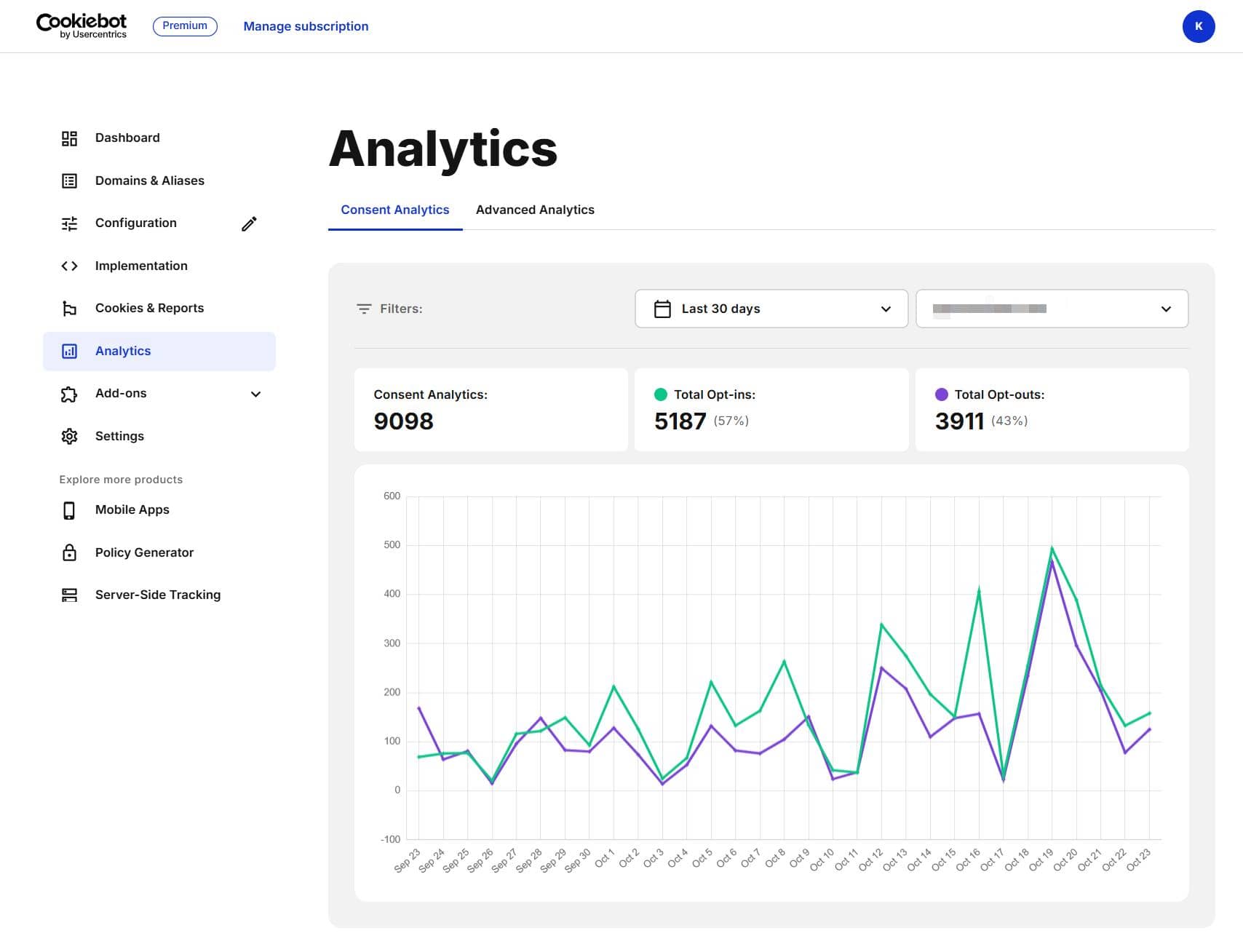
In this example, 5,187 of 9,098 visitors who made a choice opted in, a 57% consent rate. The other 43% opted out. As you can see, Cookiebot calculates the rate from the visitors who clicked a choice in the banner.
Need the raw numbers? The Cookiebot data API returns daily opt-ins and opt-outs, opt-ins per category (preferences, statistics, marketing) and consents by country, for up to the last 12 months.
Then ask the obvious question: is my rate good or bad? A 45% opt-in rate means nothing without context. Cookiebot’s Consent Rate Benchmark add-on shows your consent rate next to the industry average and the top-quartile benchmark for your industry, country and company size, for every domain in your account. It runs on the Cookiebot tag you already have, so there’s no extra code to install.
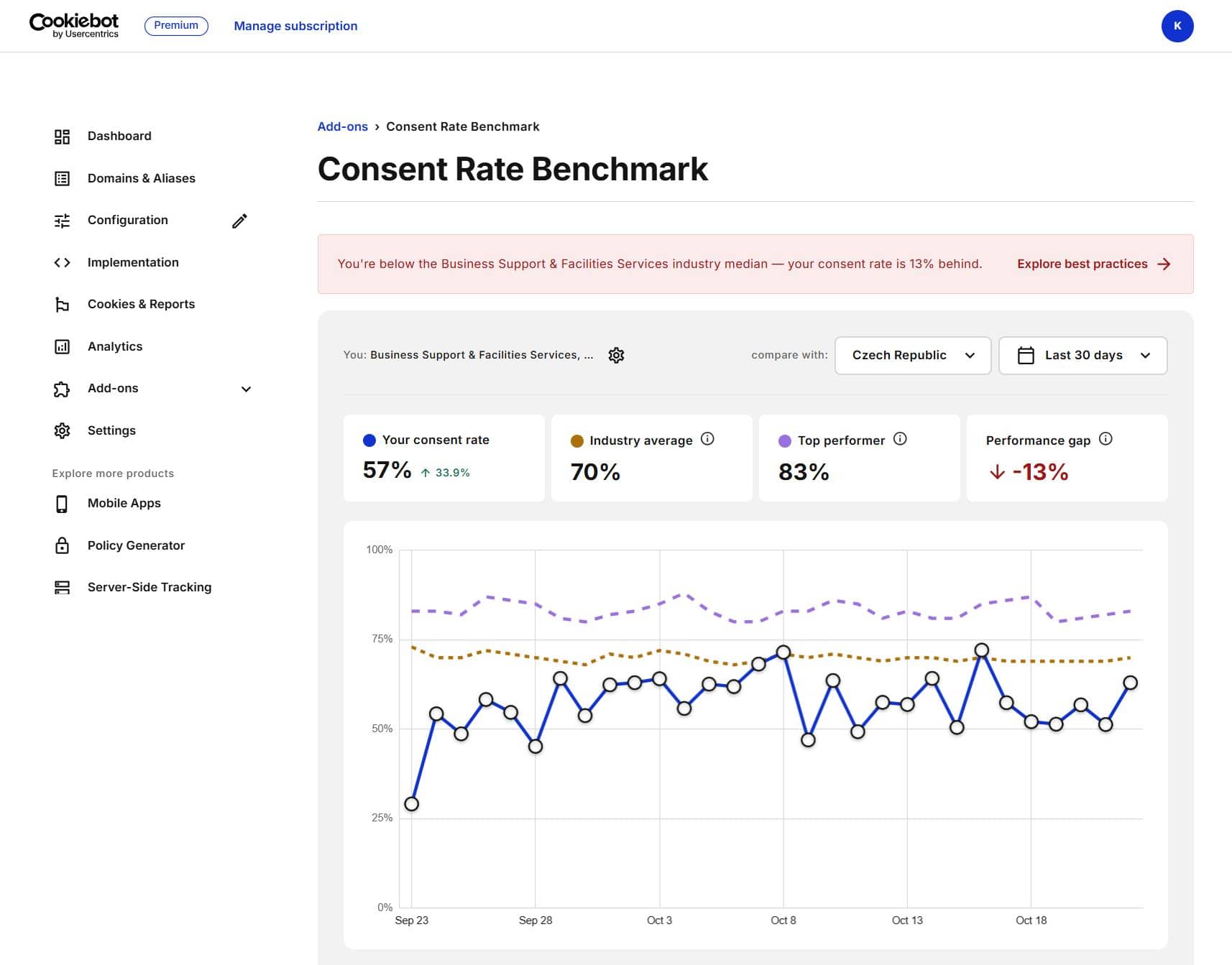
In this example, the consent rate over the last 30 days is 57%. The industry average for the same industry in the Czech Republic is 70% and the top performers reach 83%, so the dashboard flags a 13-point gap and links to best practices.
Check 2: Compare Google Ads Clicks With GA4 Paid Sessions
This is the quickest way to see the gap with your own eyes.
Google Ads counts every click, regardless of consent. GA4 standard reports with the observed reporting identity only show sessions from visitors who consented to analytics cookies. The difference between the two is your visibility gap.
- Open Google Ads and note the clicks for your campaigns over the last 30 days.
- Open GA4, go to Reports > Acquisition > Traffic acquisition, and filter Session source / medium to google / cpc for the same date range.
- Divide GA4 sessions by Google Ads clicks. That’s the share of your paid traffic you can actually see.
⚠️ Note: Clicks and sessions are never a perfect match. Ad blockers, visitors who leave before the page loads, and tracking issues all widen the gap too. Treat the result as a direction, not an exact consent loss. And if your GA4 property uses the Blended reporting identity with modeling active, your session count already includes estimated visitors (more on that in Check 4).
Here’s how it works on an example: if Google Ads shows 2,000 clicks for the last 30 days and GA4 shows 1,100 google / cpc sessions for the same period, you can see 55% of your paid traffic. The other 45% is your visibility gap.
If you advertise in several countries or on several domains, run the check for each of them separately. One good overall number can hide a weak market.
Check 3: Check Consent Mode Status and Impact Results in Google Ads
Google Ads tells you whether it sees your Consent Mode setup and how many conversions modeling adds back.
- Click Goals and go to Conversions > Summary.
- Open the Diagnostics tab.
- Find the Consent mode card. It rates your consent mode setup per platform, for example Web: Excellent.
- Click View details on that card. Google explains the rating there, for example: Your website ads consent setup is active and fully optimized in the European Economic Area.
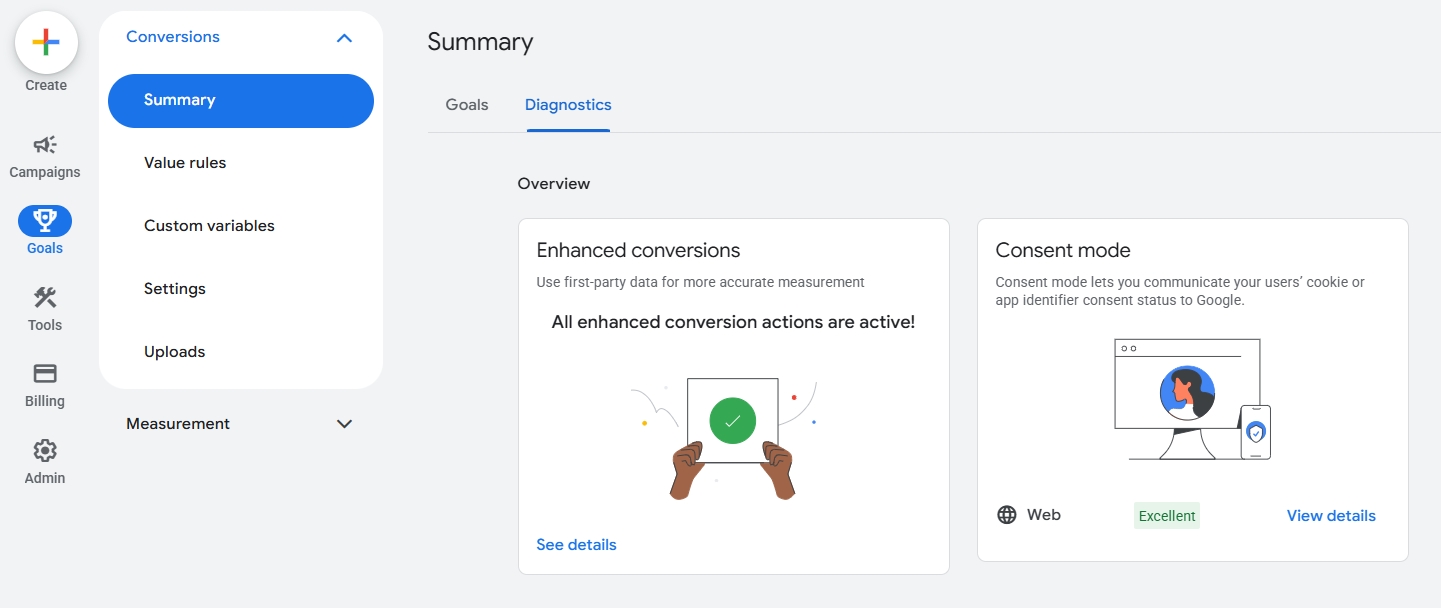
Keep in mind that this rating checks your setup. Whether Google actually models the conversions it can’t observe depends on your volume: conversion modeling needs at least 700 ad clicks over 7 days per domain x country grouping.
When modeling goes live, the Diagnostics tab also shows your consent mode impact results. Google calculates the uplift as modeled conversions divided by observed conversions, for each domain x country pair.
⚠️ Note: The uplift numbers are only shown for 4 weeks after the modeling start date. Download them while you can.
If your uplift is lower than expected, Google lists three common reasons: Consent Mode isn’t detected on all pages, the ad click consent rates are too low, or your tags are blocked from sending cookieless pings.
Check 4: Check Whether GA4 Models the Missing Visitors
GA4 can fill part of the gap too, with behavioral modeling. But only if your property qualifies.
Google’s prerequisites:
- Consent Mode on all pages, in the advanced implementation.
- At least 1,000 events per day with analytics_storage denied, for at least 7 days.
- At least 1,000 daily users with analytics_storage granted, for at least 7 of the previous 28 days.
Meeting these doesn’t guarantee eligibility. Google’s model applies additional quality checks.
To see modeled data in your reports:
- Go to Admin > Data display > Reporting identity.
- Select Blended and save. This setting only changes what you see in reports, not the data collection or processing itself.
- Check the data-quality icon in your reports. It tells you whether GA4 is including estimated user data.
⚠️ Note: Modeled data isn’t used everywhere. Audiences, retention reports, predictive metrics and the BigQuery export don’t support it. Your GA4 remarketing audiences are still built only from consented visitors.
Check 5: Verify Your Consent Mode Implementation With Tag Assistant
A broken setup means no modeling at all, no matter how good your consent rate is. Run this check last to make sure the first four are built on solid ground.
- Open Tag Assistant and enter your website’s URL.
- Accept all in the cookie banner.
- Select the earliest Consent event in the summary. Check that ad_storage, ad_personalization, ad_user_data and analytics_storage are set, with the on-page default set to Denied.
- Select the most recent Consent event. Check that the on-page update is set to Granted.
- Open the Tags tab and check that each tag behaved according to the consent state.
🕵️ Want more ways to test it?
Discover 9 ways to check if Consent Mode is enabled. Choose the one that suits you best.
How to Read Your Result
Once you have your visible share from Check 2, put it next to the other checks:
- Low consent rate in Check 1 and a big gap in Check 2: consent is likely the main reason you can’t see your paid traffic. Focus on your banner and your consent rate.
- Good consent rate but a big gap anyway: look for other causes, such as ad blockers, tags that load too late or pages where your GA4 tag is missing.
- Modeling active in Check 3 and Check 4: Google fills part of the gap, so your conversion reports in Google Ads show more than GA4’s observed data.
Then compare purchases, not just sessions. Put the purchases GA4 attributes to google / cpc next to the conversions in Google Ads. They won’t match exactly, because Google Ads includes modeled conversions and uses different attribution than GA4. But a big difference shows how much of your paid performance you’d miss if you judged it by GA4 alone.
⚠️ Note: Not all of the gap is consent. Ad blockers, browser tracking prevention and visitors who leave before the page loads play a part too. That’s exactly why Checks 1, 3 and 4 matter: they tell you how much of the gap is consent and how much Google gets back through modeling.
Why You Should Do This Before Black Friday
If Black Friday is your biggest week, it’s also the week where every percentage point of lost data hides the most conversions from your bidding.
Cookiebot’s Black Friday 2026 Consent Compliance Checklist splits the preparation into four phases, and the last one is clear: Black Friday week: monitor, don’t change. If your setup needs fixing, the time is now, before your code freeze.
Cookiebot also points out a risk beyond data loss. In its Retail Consent Audit Guide, it warns that a shrinking consent rate means a smaller retargeting pool and weaker ad signal, and that one pixel firing too soon can lead to legal trouble. The guide gives you five checks you can run yourself:
- Banner and consent experience audit
- GPC and opt-out signal test
- Checkout-flow trace
- Chat and third-party widget check
- Social-referral first-touch handling
🔧 Running Cookiebot through Google Tag Manager?
Learn how to set up Cookiebot in Google Tag Manager in 5 steps.
Get Your Number Before Your Busiest Week
You now have five checks that turn “we probably lose some data” into a number for your own account. Run them this week:
- Scan your website with Cookiebot’s free Compliance Test to see whether your setup is compliant.
- Check your consent rate against your industry with the Consent Rate Benchmark add-on.
- Download the Retail Consent Audit Guide and run the five checks before Black Friday traffic hits.
Your banner will cost you some data either way. Measuring it is how you make sure it doesn’t cost you more than it has to.
Frequently Asked Questions
A consent rate, also called opt-in rate or acceptance rate, is the percentage of website visitors who accept cookies in your cookie banner. For advertisers, it decides how much of your traffic and conversions Google Ads and GA4 can observe directly.
A refusal rate is the opposite of your consent rate: the percentage of visitors who reject cookies in your cookie banner. With a 60% consent rate, your refusal rate is 40%.
Divide the number of visitors who accepted cookies by the number of visitors your CMP counts, then multiply by 100. If 1,000 visitors make a choice and 600 accept, your consent rate is 60%. Check whether your CMP divides by every visitor who saw the banner or only by those who clicked a choice, because the two give different numbers.
It depends on your industry and the countries you target. Cookiebot’s Consent Rate Benchmark add-on compares your rate with the industry average and the top-quartile benchmark for your industry, country and company size.
No. According to Google, consented users are typically 2 to 5 times more likely to convert than unconsented users. In Google’s own example, an advertiser with a 50% consent rate saw a 19% drop in conversions.
Partly. With Consent Mode, Google Ads models conversions it can’t observe once you reach 700 ad clicks over 7 days per domain and country. To check your consent mode setup, go to Goals, Conversions, Summary and open the Diagnostics tab.
Open the Cookiebot Manager and go to Analytics, Consent Analytics. You will see the total number of consents, opt-ins and opt-outs for the selected domain and date range. You can also pull daily consent data through the Cookiebot data API.

Hana Kobzová is a freelance PPC specialist and the founder of PPC News Feed. Named among the TOP 100 Most Influential PPC Experts 2026, she is also a Google Ads Product Expert and a Microsoft Advertising Certified Professional. Hana delivers clear updates and actionable insights that help marketers save time and work smarter.