Disclaimer: This post may contain affiliate links. If you make a purchase through them, we may earn a commission at no extra cost to you.

Do you actually know what cookies your website drops on every visitor? Most site owners don’t, and under GDPR, the ePrivacy Directive, and Google Consent Mode, that’s a real risk. You’re expected to know exactly which cookies fire, what they do, and whether they wait for consent. Guessing isn’t a compliance strategy.
The good news: you can check what cookies your website uses in a few minutes, no developer required.
In this guide you’ll do it two ways. First the manual method with your browser’s built-in tools, so you see what’s really happening under the hood. Then the fast, complete method with a free cookie scanner that crawls your whole site and classifies everything for you. By the end you’ll have a full inventory of your cookies, you’ll know which ones put you at risk, and you’ll know how to fix it.
In a hurry? Skip the manual route and run a free cookie scan on your site right now, then come back for the part that matters most: reading the report and closing the gaps.
Use Cookiebot CMP to collect user consent, stay compliant with GDPR and other global regulations, and ensure proper implementation of Consent Mode. Trusted by millions, available in 47+ languages, it’s the most popular solution for balancing privacy and performance. Easy to set up, fully customizable, and Google-certified.
![Get Started with Cookiebot Today With 15% Off for 6 Months [SPECIAL OFFER]](https://ppcnewsfeed.com/wp-content/uploads/2025/11/cookiebot-2025-11.jpg)
Quick summary
To check what cookies your website uses, open it in Chrome, press F12, go to the Application tab, and expand Cookies under Storage to see the cookies on that page. For a complete, categorized view of your entire site, run your URL through a free cookie scanner. Only the scanner confirms whether you’re actually compliant.
What you’ll be working with
- Browser developer tools: Built into Chrome, Firefox, and Safari. Free and instant, but limited to one page at a time with no context.
- A cookie scanner: An online tool that crawls your entire website, finds every cookie, and groups them by purpose. This is what compliance actually requires.
Before you start checking, it helps to know what you’re looking at. Cookies fall into a few buckets:
- First-party cookies: Set by your own domain. Usually for core functions like logins, carts, and language.
- Third-party cookies: Set by external services like ad networks and analytics. These draw the most regulatory attention.
- Session cookies: Temporary. They disappear when the visitor closes the browser.
- Persistent cookies: Stay on the device for a set period, sometimes years.
By purpose, most tools sort cookies into necessary, preferences, statistics, and marketing. That last grouping is what your consent banner needs to control. Keep these categories in mind, they’ll matter when you read your report.
The quickest way to peek at cookies on a single page is your own browser.
Here’s how in Chrome.
- Open your website in Chrome.
- Right-click anywhere on the page and select Inspect, or press F12 (Windows) or Cmd + Option + I (Mac).
- Go to the Application tab.
- In the left sidebar, expand Cookies under the Storage section.
- Click your domain to see the cookies set on that page.

💡 Pro tip: Load your site in an Incognito window first, then open DevTools. That clears cookies from other sites and your own past visits, so you only see what this page sets on a fresh visitor.
Not on Chrome? The path is almost identical in other browsers.
Firefox:
- Press F12 to open Developer Tools.
- Go to the Storage tab.
- Expand Cookies and select your domain.

Safari:
- Enable the developer menu first: Safari > Settings > Advanced, then check Show Develop menu in menu bar.
- Right-click the page and select Inspect Element.
- Open the Storage tab and select Cookies.
You can also get a quick partial view by clicking the padlock or info icon in your browser’s address bar, which shows cookies in use on the current page without opening DevTools at all.
In the cookie table you’ll see columns like Name, Domain, Expires, and Value. A few things to look for:
- Name: Often cryptic.
_ga,_gid, and_gcl_auare Google Analytics and Google Ads._fbpis the Meta pixel. Many others won’t be obvious at all. - Domain: Tells you if the cookie is first-party (your domain) or third-party (an external tool).
- Expires: How long the cookie sticks around. Some persist for years.

Here’s where the manual method runs out of road. Your browser shows cookies on one page at a time, gives you no description of what each cookie does, doesn’t tell you whether a cookie is necessary, statistical, or marketing, and crucially, won’t tell you if any of them fire before the visitor gives consent. That last point is the entire compliance question, and DevTools simply can’t answer it.
To check a real website with dozens of pages and dozens of cookies, you need something that crawls the whole site and classifies what it finds.
📋 Not sure you even need a banner?
Find out in Do I Need a Cookie Consent Banner on My Website?
This is where a cookie scanner does in seconds what would take you hours by hand. Cookiebot offers a free Cookie Checker that crawls your site and returns a categorized report.
- Go to the Cookiebot Cookie Checker.
- Enter your website URL.
- Click Scan and let it crawl your pages.

Unlike DevTools, the scanner visits multiple pages, detects first and third-party cookies, identifies the tracking technologies behind them, and tells you what each one is actually for. No guessing at cryptic names.
🔧 Ready to put Cookiebot on your site?
Do it through Google Tag Manager in 5 steps, install it on WordPress, set it up on Shopify, or, on Wix, use the Usercentrics for Wix app.
Step 4: Read your scan results
You don’t have to sit and wait while Cookiebot works. Leave your email address and it sends the full report to your inbox, so you can come back to it whenever you’re ready.
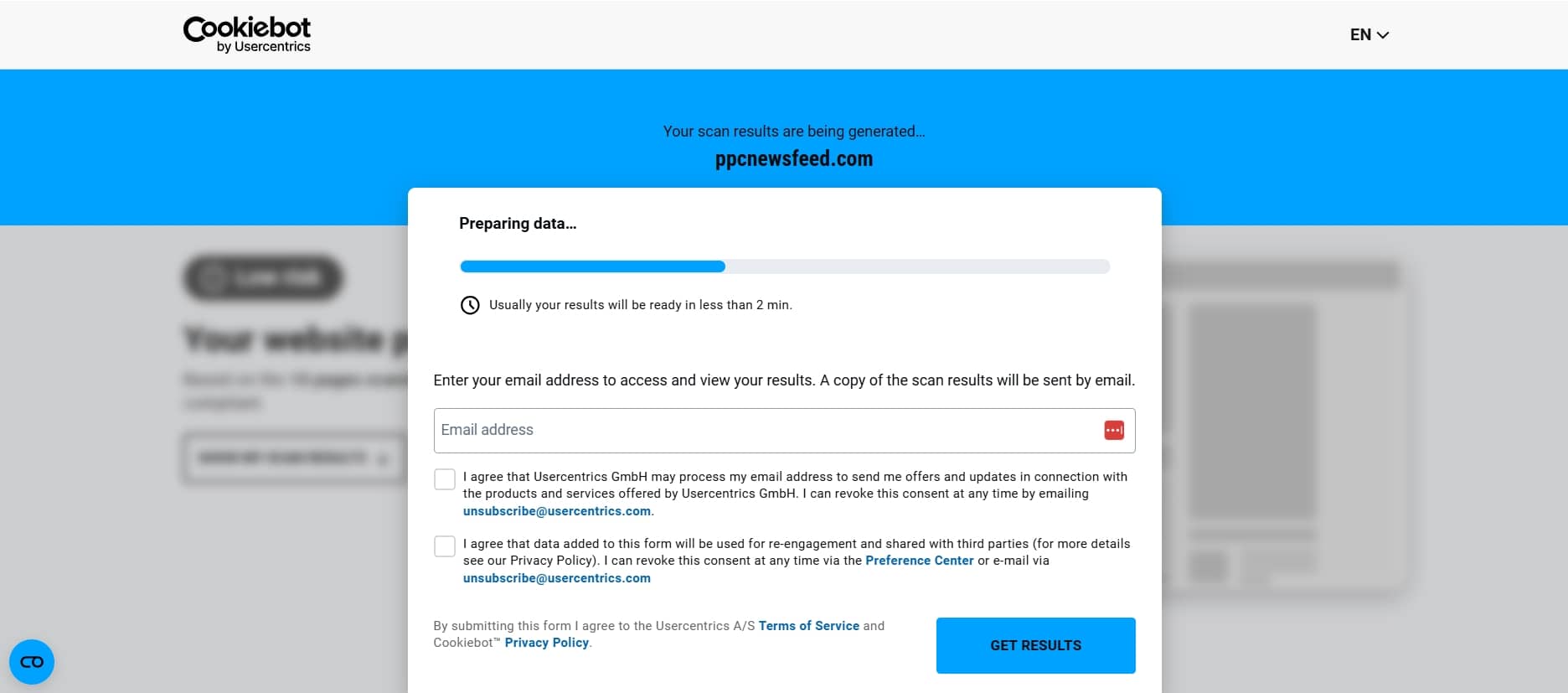
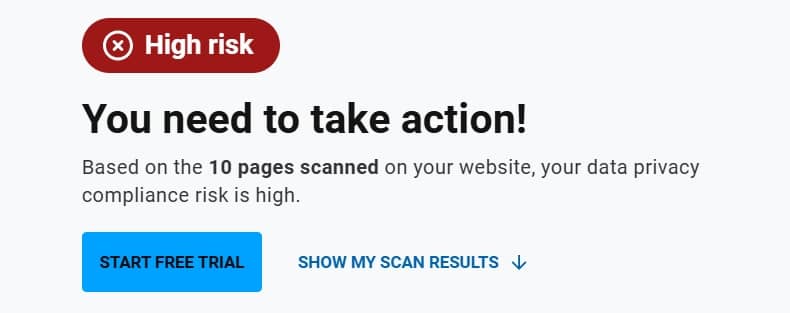
The report opens with an overall compliance risk verdict. In one glance it tells you whether your site is in the clear or needs action, alongside a quick summary: the scan date, which regulations were checked (GDPR and ePrivacy), and the total number of trackers found. A High risk rating means cookies are firing in ways the law doesn’t allow.
Under Trackers detected, every cookie and tracker is grouped into clear categories so you can see what’s actually running:
- Necessary: Required for the site to function. These don’t need consent.
- Preferences: Remember choices like language or region.
- Statistics: Analytics cookies that measure how visitors use your site.
- Marketing: Advertising and retargeting cookies. The ones regulators scrutinize most.
- Unclassified: Cookies Cookiebot couldn’t identify yet. Worth a closer look.
Each tracker is listed with its name, provider, category, and where the data is sent.
One caveat: The free scan only covers a handful of pages. Cookiebot scans your whole site once you create an account, so treat this as a fast first read, not the final word.
Step 5: Implement the results
The report doesn’t stop at a list of cookies. It grades your site against the specific legal requirements behind GDPR and the ePrivacy Directive, with a clear pass or fail on each.
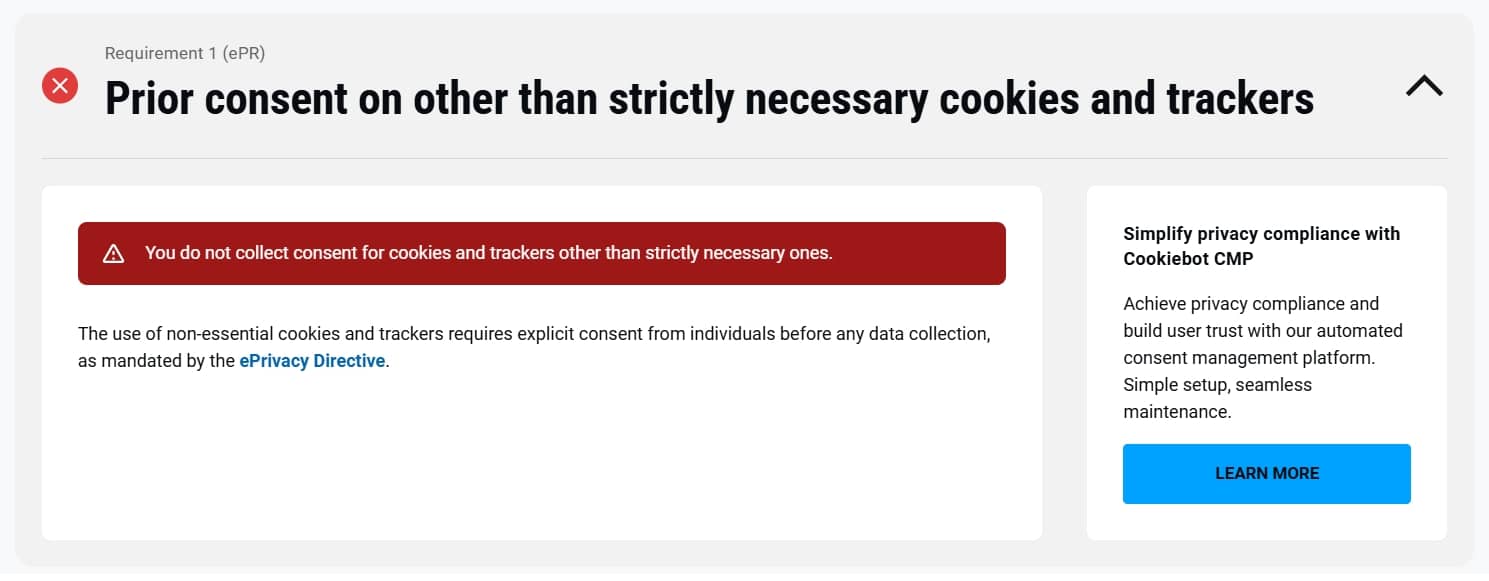
In this scan, the site passed two checks (prior consent on personal data, and data transfers to adequate countries) but failed the big one: Requirement 1 (ePR), prior consent for anything other than strictly necessary cookies. In plain terms, non-essential trackers were firing before the visitor ever agreed. That’s the single most common compliance gap, and it’s exactly the kind of thing that gets sites fined.
💸 Think a missing banner is no big deal?
See the real Consent Mode and GDPR fines companies have paid for getting this wrong.
Prior consent is the most common failure, but it is not the only one. Here are the other red flags worth checking on any scan:
- Trackers you didn’t add yourself. Embeds, plugins, and ad tags quietly drop their own cookies, and they’re still your responsibility.
- A pile of unclassified cookies. You can’t get consent for something you can’t explain.
- Long-lived third-party trackers. Multi-year lifespans are exactly what regulators look for.
- No consent banner gating any of it. Without one, you have no legal basis for the tracking.
The fix for all of these is a Consent Management Platform (CMP), the tool that shows your cookie banner, records each visitor’s choice, and blocks non-essential cookies until they say yes. A CMP like Cookiebot scans your site every month, keeps your cookie declaration up to date, displays a compliant banner, and stops statistics and marketing cookies from firing until the visitor consents. Setting one up also unlocks the full-site scan the free checker holds back.
- Start with Cookiebot and add your domain.
- Place the banner script on your site, or deploy it through Google Tag Manager.
- Let it auto-scan and categorize your cookies.
- Publish your banner and start collecting valid consent.
For a quick verdict before you commit, run the free Cookiebot Compliance Test, which crawls up to five subpages and emails you a compliant, partially compliant, or non-compliant rating.
🎨 Want your banner to actually pass muster?
Check these 13 cookie consent banner requirements, with real examples.
Frequently asked questions
Open the site in Chrome, press F12, go to the Application tab, and expand Cookies under Storage to see the cookies on that page. For a full-site, categorized view, run the URL through a free cookie scanner like the Cookiebot Cookie Checker.
Yes. The Cookiebot Cookie Checker scans your website for free and returns a report of cookies grouped by category. Browser developer tools are also free but only show one page at a time with no classification.
Right-click the page and select Inspect (or press F12), open the Application tab, then expand Cookies in the sidebar and click your domain. You’ll see each cookie’s name, domain, and expiry.
Press F12 to open Developer Tools, go to the Storage tab, expand Cookies, and select your domain to view the cookies on the page.
Almost certainly. WordPress sets cookies for logins and comments, and most plugins and themes add their own, including analytics and marketing tools. Run a scan to see the full list.
No. Necessary cookies make sites work. The issue is non-essential statistics and marketing cookies firing without consent, which is what privacy laws regulate.
Developer tools show cookies on a single page with no context. A scanner crawls your whole site, identifies first and third-party cookies, classifies them by purpose, and flags compliance issues.
Laws like GDPR and the ePrivacy Directive require you to know your cookies, disclose them, and get consent before non-essential ones fire. Without that, you risk fines and lost trust.
You now know exactly how to check what cookies your website uses, the quick manual way and the complete, compliance-ready way. The manual method is great for a fast look. The scanner is what tells you whether you’re actually compliant.
Don’t wait for a complaint or a fine to find out what’s firing on your site. Run a free cookie scan with Cookiebot and see your full cookie inventory in seconds.
🆓 Ready to go further?
Here’s how to start your free Cookiebot trial and get a compliant banner live.
Use Cookiebot CMP to collect user consent, stay compliant with GDPR and other global regulations, and ensure proper implementation of Consent Mode. Trusted by millions, available in 47+ languages, it’s the most popular solution for balancing privacy and performance. Easy to set up, fully customizable, and Google-certified.