Did you know that stats say that the top 10% of your products drive 80% of your store’s total revenue?
These are the heroes of your catalog. They drive orders, fuel your ROAS and make or break your campaigns.
How often do you check them in Google Merchant Center?
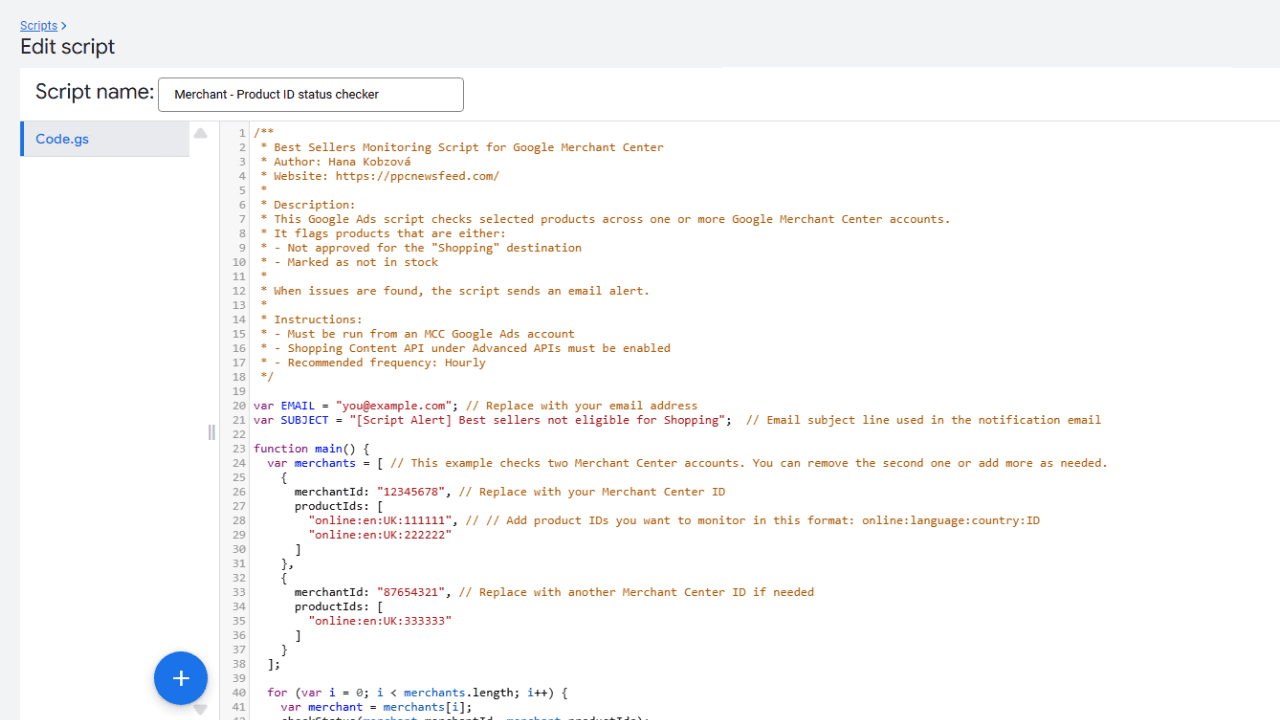
I’ve created a free Google Ads script that will take care of monitoring these best-sellers so you don’t have to.
How Does This Script Work?
If your best-selling product gets disapproved or quietly slips out of stock, you’ll almost certainly see a drop in conversions . And often, you won’t realize why until it’s too late.
This script keeps a quiet eye on your most important products, so you don’t have to.
You pick the products you want to keep an eye on. The script then checks their status in your Merchant Center account and looks for two key issues:
- whether they’re no longer approved for Shopping
- whether they’re not in stock anymore
If something’s off, it sends you an email notification with the details. You’ll get the product name, a direct link, and a summary of the issue including documentation if it helps speed things up.
Here’s what the email notification will look like:
![Screenshot of an email titled "[Script Alert] Best-Selling Products not eligible for Google Merchant Center," listing merchant website links, item IDs, reasons like "out of stock" and "invalid value," with some links and text highlighted.](https://ppcnewsfeed.com/wp-content/uploads/2025/06/best-sellers-monitor-email-google-ads-script-merchant.png)
Apart from top-selling products, you can also use the script to monitor:
- Newly added products you want to push and make sure are live
- Products on sale or promotion that need to be visible during the campaign
- High-margin products that are crucial for profitability
- Seasonal or limited-time items where timing is critical
- Products flagged often in the past so you can catch recurring issues early
- Products in critical categories like branded items or compliance-sensitive goods
It doesn’t replace regular checks in Google Merchant Center, but it helps you stay focused on what matters most.
How to configure it
Setting up the script is simple. And once it’s running, it works quietly in the background to keep you informed.
Here’s what you need to do.
1. Add the script to your Google Ads account
This script isn’t tied to any specific Google Ads account, it only communicates with Google Merchant Center. Therefore, you can add it at either the MCC level or an individual account level, and it will work in both cases.
Also, you can monitor products across multiple Google Merchant Center accounts. In your Google Ads account, go to Tools > Bulk actions > Scripts. Create a new script, and paste the code you can find at the end of this post.
2. Personalize it
At the top of the script, update the following:
EMAIL— Replace with the address where alerts should be sentSUBJECT— Customize the subject line if you’d like, but you can keep it as it ismerchants— This section lets you specify which Merchant Center accounts and product IDs you want the script to monitor:merchantId— Enter your Merchant Center IDsproductId— Enter a list of product ids that have to be identical to products IDs used in Google Merchant Center. Use the following format:online:language:country:ID, here are some examples:- US feed:
online:en:US:123456 - UK feed:
online:en:UK:123456 - Irish feed:
online:en:IE:123456 - Spanish feed:
online:es:ES:123456 - German feed:
online:de:DE:123456 - Dutch feed:
online:nl:NL:123456 - Czech feed:
online:cs:CZ:123456
- US feed:
Only include the products you care most about such as bestsellers, new launches, or high-margin SKUs.
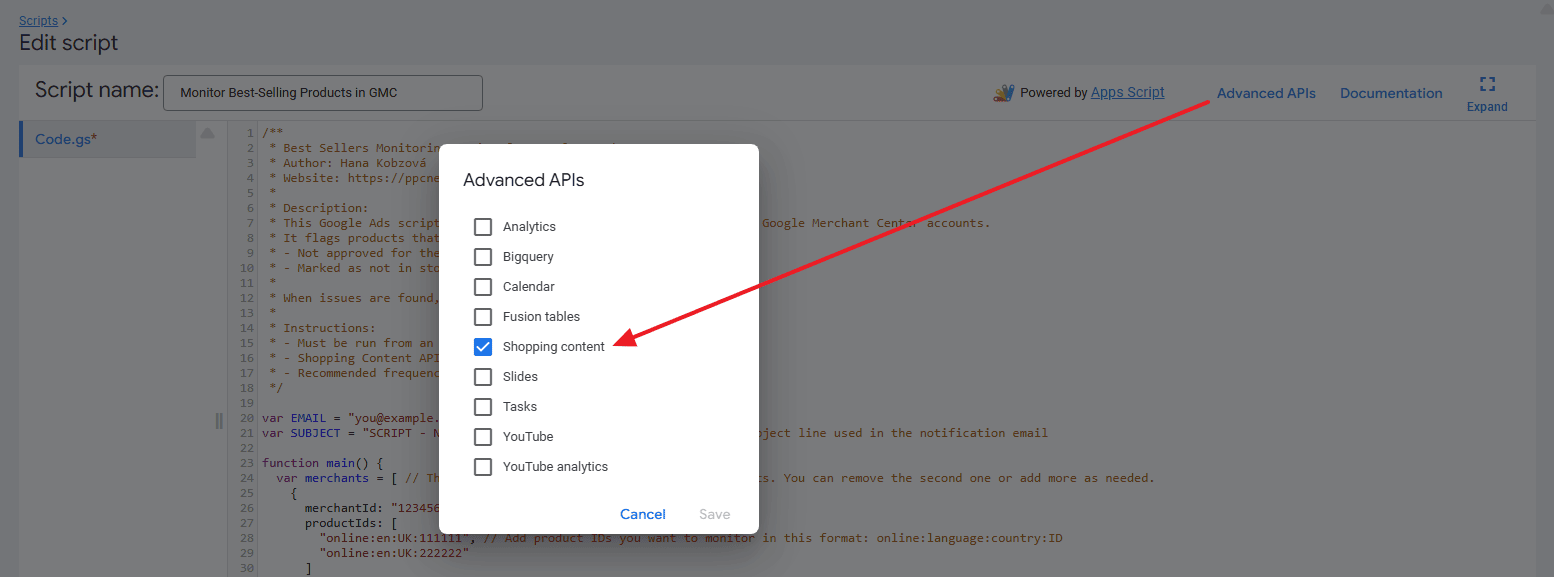
3. Enable the required API
Before saving the script, make sure to enable the Shopping Content API under Advanced APIs. This gives the script access to product statuses.
4. Authorize the script
Click Authorize to give the script permission to access your Merchant Center and send emails.
5. Set the script to run hourly
In the script settings, set the frequency to Hourly. This ensures you’re notified of issues as soon as they appear.
Script: Best Sellers Monitoring for Google Merchant
/**
 * Best Sellers Monitoring Script for Google Merchant Center
 * Author: Hana Kobzová
 * Website: https://ppcnewsfeed.com/
 *
 * Description:
 * This Google Ads script checks selected products across one or more Google Merchant Center accounts.
 * It flags products that are either:
 * - Not approved for the "Shopping" destination
 * - Marked as not in stock
 *
 * When issues are found, the script sends an email alert.
 *
 * Instructions:
 * - Can be run from an MCC Google Ads account or an individual account
 * - Shopping Content API under Advanced APIs must be enabled
 * - Recommended frequency: Hourly
 */

var EMAIL = "[email protected]"; // Replace with your email address
var SUBJECT = "[Script Alert] Best sellers not eligible for Shopping";  // Email subject line used in the notification email

function main() {
  var merchants = [ // This example checks two Merchant Center accounts. You can remove the second one or add more as needed.
    {
      merchantId: "12345678", // Replace with your Merchant Center ID
      productIds: [
        "online:en:UK:111111", // // Add product IDs you want to monitor in this format: online:language:country:ID
        "online:en:UK:222222"
      ]
    },
    {
      merchantId: "87654321", // Replace with another Merchant Center ID if needed
      productIds: [
        "online:en:UK:333333"
      ]
    }
  ];

  for (var i = 0; i < merchants.length; i++) {
    var merchant = merchants[i];
    checkStatus(merchant.merchantId, merchant.productIds);
  }
}

function checkStatus(merchantId, productIds) {
  var badStatus = [];

  for (var i = 0; i < productIds.length; i++) {
    var productId = productIds[i];

    try {
      var status = ShoppingContent.Productstatuses.get(merchantId, productId);
      var product = ShoppingContent.Products.get(merchantId, productId);
      var availability = product.availability || "Unknown";
      var title = status.title || "Unknown title";
      var link = status.link || "No link available";
      var destinationStatuses = status.destinationStatuses || [];
      var itemIssues = status.itemLevelIssues || [];
      var disapproved = false;

      // Extract country code from product ID
      var countryCode = productId.split(":")[3];

      if (availability.toLowerCase() !== "in stock") {
        Logger.log("Product " + productId + " is out of stock.");
        badStatus.push({
          id: productId,
          title: title,
          link: link,
          reason: "<strong style='color:red'>" + availability + "</strong>"
        });
      } else {
        Logger.log("Product " + productId + " is in stock.");
      }


      for (var j = 0; j < destinationStatuses.length; j++) {
        //Logger.log(destinationStatuses);
        var entry = destinationStatuses[j];
        if (entry.destination === 'Shopping') {
          if (entry.hasOwnProperty('disapprovedCountries')) {
            disapproved = true;
            break;
          } else {
            continue;
          }
        }
      }

      if (disapproved) {
        Logger.log("Product " + productId + " is NOT APPROVED in Shopping.");
        var reasons = [];
        var seen = {};

        for (var k = 0; k < itemIssues.length; k++) {
          var reason = itemIssues[k].description || "Unknown reason";
          var doc = itemIssues[k].documentation || "";
          if (!seen[reason]) {
            seen[reason] = true;
            reasons.push("<strong style='color:red'>" + reason + "</strong>" + (doc ? " <a href='" + doc + "'>(documentation)</a>" : ""));
          }
        }

        badStatus.push({
          id: productId,
          title: title,
          link: link,
          reason: reasons.length > 0 ? reasons.join(", ") : "Unknown reason"
        });
      } else {
        Logger.log("Product " + productId + " is approved or pending in Shopping.");
      }
    } catch (e) {
      Logger.log("Error retrieving product " + productId + ": " + e.message);
    }
  }

  if (badStatus.length > 0) {
    var website = ShoppingContent.Accounts.get(merchantId, merchantId).websiteUrl || "Unknown website";
    sendEmail(badStatus, website);
  }
}

function sendEmail(products, websiteUrl) {
  var output = products.map(function(p) {
    return "<p><strong>ID:</strong> " + p.id +
           "<br><strong>Title:</strong> " + p.title +
           "<br><strong>Link:</strong> <a href='" + p.link + "'>" + p.link + "</a>" +
           "<br><strong>Reason(s):</strong> " + p.reason +
           "</p>";
  }).join("<hr>");

  var html = [
    "<html>",
    "<body>",
    "<p>" + SUBJECT + "</p>",
    "<p>Merchant website: " + websiteUrl + "</p>",
    "<p>-------------</p>",
    output,
    "</body>",
    "</html>"
  ];

  MailApp.sendEmail(EMAIL, SUBJECT + " - " + websiteUrl, "", { htmlBody: html.join("\n") });
  Logger.log("Email sent.");
}
Whether you’re managing one account or twenty, this script helps you stay ahead of the issues that hurt performance most.
Set it up once, and it quietly keeps watch in the background, alerting you only when something needs your attention.
If it saves you even one campaign from tanking, it’s worth it.